|
17.08.2008
A Quick Overview, Installation, Initial Config on ISA, VPN Client Package, Default Security Checks
- 1. A Quick Overview
- 2. Installation
- 3. Initial Config on ISA
- 4. VPN Client Package
- 5. The Default Behaviour Of The VPN-Q 2006 Client If The Health Checks Fail
- 6. Default Health Checks Performed by VPN-Q 2006 Enterprise Edition
- 6.1 IP Routing Status
- 6.2 ICS - Internet Connection Sharing Status
- 6.3 Antivirus Checks
- 6.4 Personal Firewall Checks
- 6.5 Automatic Updates and Security Updates Status
- 6.6 Minimum Operating System and Service Pack Level
- 6.7 Screen Saver Status
- 7. Use Default Gateway on Remote Network
1. A Quick Overview
There are a couple of things concerning any security admin regarding its users like don't do anything stupid and keep your software(like OS, antivirus definitions...) up to date.
For the security admin, these things might be under her/his control if the machines are located on the corporate network.
The admin will make sure tha the OS' are patched on a timely basis, install on every user machine a personal antivirus and a personal firewall. He or she will keep the antivirus definitions up to date.
When these machines leave the corporate network for a period of time, and need access to the corporate network from remote locations, the admin is clueless about their state of health.
Were the latest security patches installed ?
Was the antivirus kept up to date, or even worse, is still the antivirus program enabled on these machines ?
Is the personal firewall still enabled on the users' machines ?
Have those machines become a sort of gateways for the user's home network, thus serving as a potential path to the corporate network for an attacker once the user uses a VPN connection to access the corporate network ?
Remote VPN access can be the solution to the need of connectivity of the remote users, users like the road warriors, home workers or a remote partner.
ISA Server 2004/2006 is a powerful remote access VPN server offering remote access connectivity using an Internet Standard protocol like L2TP/IPsec.
Within the VPN Consortium document of supported technologies, L2TP/IPsec is listed under
Secure VPN technologies.
ISA Server 2006, as a VPN server is discussed in detail in Dr. Tom Shinder's ISA Server 2006 Migration Guide.
As you may know or not, I've started a series of articles dedicated to L2TP/IPsec and ISA. If you like, you may start to read them: http://www.carbonwind.net/ISA/L2TP/l2tp1.htm
Unfortunetely, there aren't by default any practical means available with ISA for the security admin to check the remote VPN users machines' health status(when I say practical, I exclude the administrative nightmare VPN Quarantine made available with ISA 2004/2006 by Microsoft, solution which will make most of the people abandoning the idea of using a remote access VPN quarantine with ISA).
NAP is a hot topic right now.
If you search for NAP, you may found out that this will be available on the future version of ISA, called TMG. But TMG is far away at this moment.
Luckily for the ISA admins, an enterprise grade VPN quarantine solution for ISA is available for quite a while now. This solution is called VPN-Q 2006. You can reach it at its vendor site, http://www.winfrasoft.com/. It will work with the VPN protocols available on ISA, PPTP and L2TP/IPsec. And very important, VPN-Q 2006 is a very easy to use and to implement solution.
VPN-Q 2006 was reviewed by Doctor Tom Shinder, please refer to http://www.isaserver.org/tutorials/Releasing-VPN-Quarantine-Users-VPN-Q-2006.html.
And it's about to get even better, a new version, VPN-Q 2008 knocking on the door.
VPN-Q 2006 is available in two editions: Standard Edition and Enterprise Edition.
In this part we will talk about VPN-Q 2006 Enterprise Edition, what it does and what it does not.
In a future part, when VPN-Q 2008 will be RTM, we will talk about it.
To say it in a few words, VPN-Q 2006 holds the VPN clients in a Quarantine Network, checks their health status, and if they pass the checks, it releases them from quarantine.
Since ISA has the ability to apply firewall policies for users or groups of users, you will not have a flat Quarantine Network.
For example, if ISA is a domain member, you can create two group of users in Active Directory, VPN1 and VPN2. Create separate access rules on ISA in respect with the VPN Quarantine Network, for VPN1 group and for the VPN2 group.
So if a VPN user from the VPN1 group fails the checks, and is retained within the Quarantine Network, he or she may be allowed to access different resources than a VPN user from the VPN2 group which is in the same situation.
This ensures a lot of flexibility for the ISA admin, because it is not required that all quarantine users to be under the same firewall policies.
By default, numerous security checks are performed on the VPN clients machines to determine the status of their health.
The downside with VPN-Q 2006 is that you can only customize these checks with an Active Directory group policy, so the VPN users's machines must be domain member computers, see Using the VPN-Q 2006 Active Directory Group Policy Template.
That might not be a big problem, since the default settings cover multiple areas. Scroll bellow for the 6. Default Health Checks Performed by VPN-Q 2006 Enterprise Edition.
With VPN-Q 2008 however, you will be able to customize the security checks for non-domain member machines too, directly from ISA, so VPN-Q 2008 promises to introduce new important and useful features.
2. Installation
The version of VPN-Q 2006 used in this article was VPN-Q 2006 Enterprise SP3 Trial.
VPN-Q 206 was installed on ISA Server 2006 Standard Edition running on Windows Server 2003 Standard R2 SP2.
ISA Server 2006 was a domain member.
I will not insist on the installation procedures, because these are covered in detail, with step-by-step pictures, in VPN-Q 2006's manual. Installation is pretty much an easy process.
I just want to say that you need to have:
ISA Server 2004/2006:
- installed at a minimum on Windows Server 2003 SP1
- Microsoft .NET Framework 1.1 or higher
On the client:
- Windows XP Home Edition SP2, Windows XP Pro SP2, Windows XP Pro x64, Windows XP Media Center Edition 2005 or Windows Vista(Home Basic, Home Premium, Ultimate, Business, Enterprise) are required.
- Microsoft .NET Framework 1.1 or higher.
Also VPN-Q 2006 installs on ISA the Remote Quarantine Agent and CMAK, so you need to have the Windows source file(say the Windows CD)
3. Initial Config on ISA
After you install VPN-Q 2006 on ISA, you'll run the VPN-Q 2006 Config Wizard, which is quite important because it will create for you some required access rules. I want to say a few words about it.
It will create an access rule to allow communication between the VPN-Q 2006 Client and ISA, see Figure1.
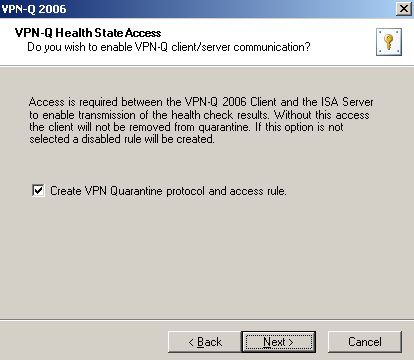
Figure1: VPN-Q 2006 Config Wizard - Create VPN Quarantine protocol and access rule
Also you need to specify a location for VPN clients to check for missing security updates. While the VPN clients are in the quarantine network, they must be given access to the Internet(to be able to connect to the Microsoft Update) or a to an internal WSUS server.
If you won't do that, the Security Updates checks on the client will fail.
The wizard will create the required access rule on ISA to provide access to Microsoft Update, see Figure2.
You can specify the name of the WSUS server if you have a WSUS server. An URL will be constructed from the specified WSUS server name for the access rule. Note that you need to configure your VPN clients to use that WSUS server.
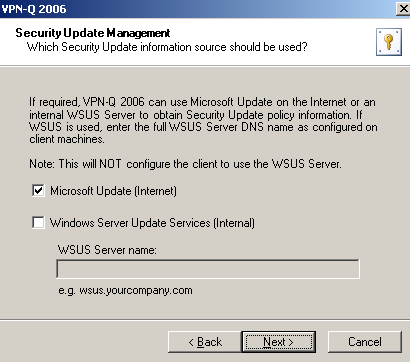
Figure2: VPN-Q 2006 Config Wizard - Microsoft Update
The DNS servers configured on the quarantine clients' VPN adapter will be used for name resolution, for example to access Microsoft Update .
The wizard will automatically create for your the required access rule, see Figure3. I've specified the name of the internal DNS server which will be provided to the VPN clients on their PPP adapter.
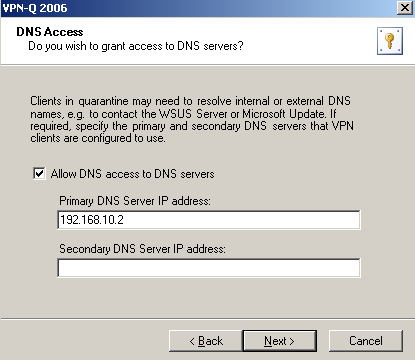
Figure3: VPN-Q 2006 Config Wizard - DNS Access
There is one more access rule automatically create for your by the wizard, see Figure4.
This one is useful for example, if you want to update the group policy of the VPN clients once their are connected, while they are in the Quarantine Network, either before or after the health checks are performed(in case they fail these checks). If you plan to use the group policy to customize the default health checks performed by VPN-Q 2006, you may be interested to run a group policy update on the VPN quarantine clients, either with the help of a custom CMAK profile or using the Run Command After Security Checks, of VPN-Q's Active Directory group policy.
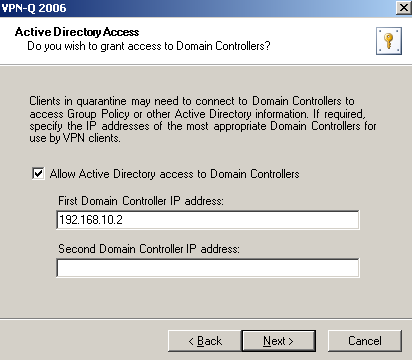
Figure4: VPN-Q 2006 Config Wizard - Active Directory Access
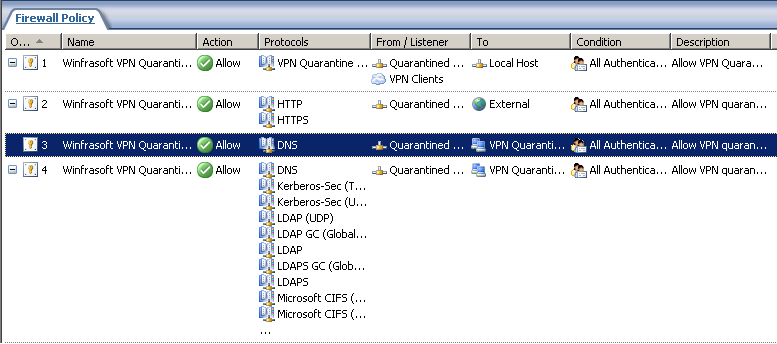
After the Config Wizard was completed, you can check the firewall policy created on ISA by it, see Figure5.
As said earlier, note that the access rules are applied to All Authenticated Users. You might want that only specific users to have Active Directory access, replace the All Authenticated Users condition with a certain group of users.
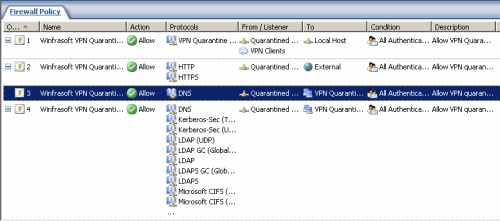
Figure5: ISA - The Firewall Policy Created By The VPN-Q 2006 Config Wizard
You can run the Config Wizard at any time from the VPN-Q 2006 Server Administrator, see Figure6.
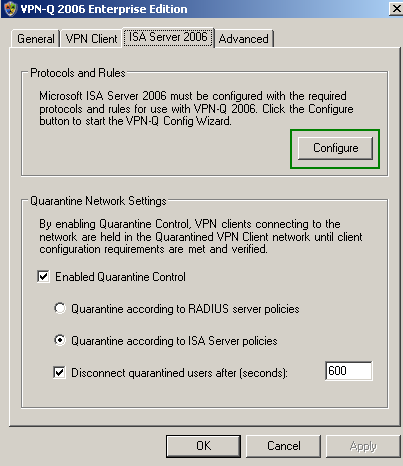
Figure6: VPN-Q 2006 Server Administrator - ISA 2006 Tab
Also from the VPN-Q 2006 Server Administrator, you can modify the address or name of the VPN server that you've specified during the installation phase, see Figure7. This name will be included in the VPN client package that will be installed on the VPN users' machines.
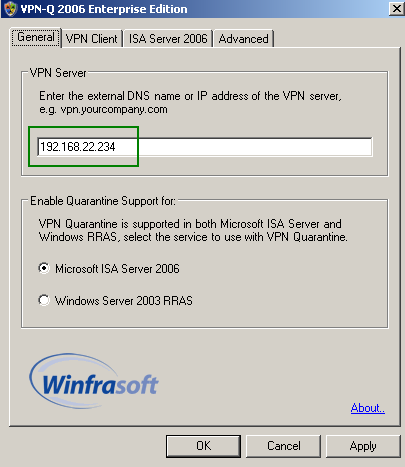
Figure7: VPN-Q 2006 Server Administrator - General Tab
From the VPN-Q 2006 Server Administrator, you can control the logging level or start/stop/set the Remote Access Quarantine Access service, see Figure8.
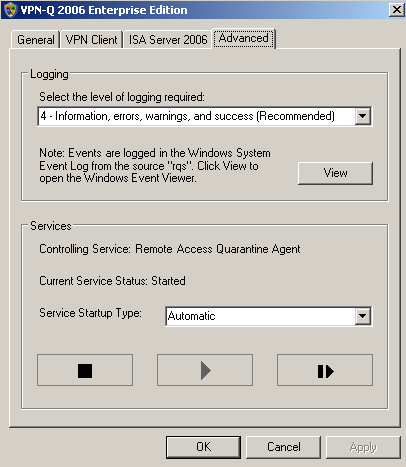
Figure8: VPN-Q 2006 Server Administrator - AdvancedTab
4. VPN Client Package
You will create the VPN Client package from the VPN-Q 2006 Server Administrator, by clicking the Create button, see Figure9. It's a custom CMAK profile.
If you select the Use Pre-shared key for L2TP/IPsec connections checkbox, the configured pre-shared key on ISA for IKE authentication will be included in the VPN Client package. If the this pre-shared key is not long enough(less than 8 characters), VPN-Q can automatically configure if you want a 32 character pre-shared key on ISA. Also if no pre-shared key was configured on ISA, VPN-Q can automatically configure if you want a 32 character pre-shared key.
You can enable the option that allows the user to save the password, but that's a possible dangerous setting.
The default VPN client package will work fine with MS-CHAPv2 for user authentication, and certificates or pre-shared keys for IKE authentication. MS-CHAP, CHAP or PAP will also work for user authentication.
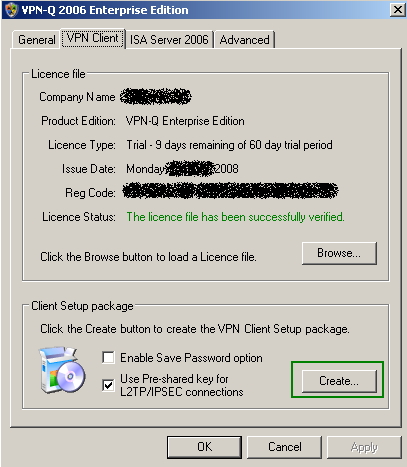
Figure9: VPN-Q 2006 Server Administrator - VPN Client Tab
If you want to create a VPN client package that will use EAP-TLS for user authentication, with the users' certificates being stored on smart cards, or RSA SecurID two factor authentication, check the VPN-Q 2006 CD, the AuthUpdates folder, see Figure10.
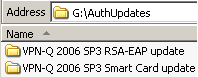
Figure10: VPN-Q 2006 CD - AuthUpdates Folder
For example within the VPN-Q 2006 SP3 Smart Card Update folder, you will find a client.exe file and a link to a help web page, see Figure11. You need to backup the existing client.exe file found in C:\Program Files\VPN-Q 2006, and copy the one from the CD in C:\Program Files\VPN-Q 2006.
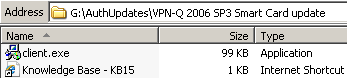
Figure11: VPN-Q 2006 CD - Smart Card Update
You can create your own custom CMAK profile to work with VPN-Q 2006 if you want.
VPN-Q 2008, as writing this available for testing as Beta 1 version, comes with more VPN client packages out of the box.
5. The Default Behaviour Of The VPN-Q 2006 Client If The Health Checks Fail
By default, if the VPN client fails the health checks, it will receive a message, see Figure12, and once he or she clicks the OK button, the VPN connection will be disconnected. And a web page from Winfrasoft's web site will be opened, web page containing some general help instructions.
If you want to change this behaviour, and to keep the VPN clients connected in the Quarantine network, you need to use the VPN-Q Active Directory group policy.
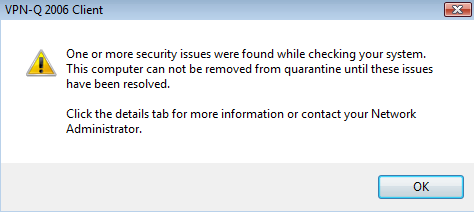
Figure12: VPN-Q 2006 Client- Failed Message
6. Default Health Checks Performed by VPN-Q 2006 Enterprise Edition
Let's view a couple of default checks performed by VPN-Q 2006.
Note that with VPN-Q 2006 Enterprise, an event will be logged on ISA whenever the health status of a VPN client is checked, so the admin can see for example the cause why the realease from quarantine failed. Thus the management is informed, and can take actions, if imposed by the company's policies, against the hapless user.
6.1 IP Routing Status
If IP routing is enabled on the client machine, this opens the posibility that an attacker located on the same network with the VPN client, to access the corporate network using the established connection. You may like to read this article: http://www.isaserver.org/tutorials/2004fixipsectunnel.html
Let's visualize this attack. Say that the remote network is 192.168.50.0/24.
The network behind ISA is 192.168.10.0/24.
The VPN client(using a Windows XP SP3 machine) has received an on-subnet IP address for its PPP adapter, 192.168.10.205.
Note that the Use default gateway on remote network checkbox is checked on the VPN adapter. The Windows Firewall is enabled on every connection on the VPN client. Also note that, with the default routing table in place, the VPN client access directly local resources, meaning hosts located on the 192.168.50.0/24 network.
I've started a Wireshark capture on ISA's external interface, and I've set IPsec ESP confidentiality(encryption) to null, so we can see in clear the packets. Also compression was disabled.
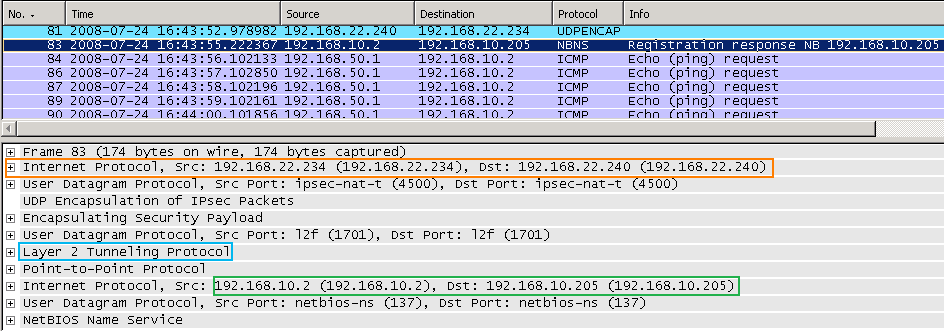
In Figure13 we can see a normal reply message, from a server behind ISA sent to the VPN client.
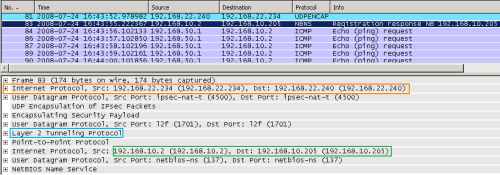
Figure13: Wireshark on ISA - XP Client with IP Routing Enabled: Normal Packet Sent over the VPN Tunnel
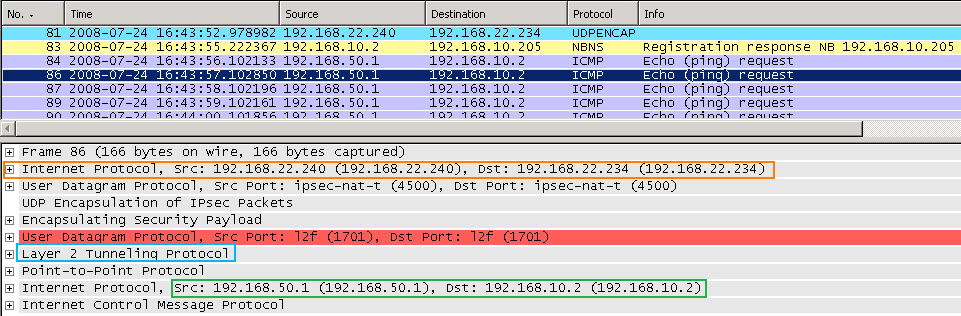
In Figure14 we can spot that instead of being sourced with the 192.168.10.205, some packets are coming from the VPN client with the source IP address 192.168.50.1.
I've simulated an "attack" from a host, 192.168.50.1, located on the same network with the VPN client, using the ping command. This host has a route to the network behind ISA through the physical adapter of the VPN client. The IP address 192.168.50.1, is an off-subnet one in respect with the network behind ISA.
Since IP routing is enabled, my Echo Request messages have been routed through the VPN connection.
Note that, if other more advanced personal firewall would have been installed on the VPN client, the Echo Request messages might have been dropped by this firewall(for example if Kaspersky Internet Security 8 was installed, and the 192.168.50.0/24 was configured as public network within the Kaspersky Firewall, then the Echo Request messages would be dropped by the Kaspersky Firewall).
As you can notice, this "attack" was an easy to execute one.
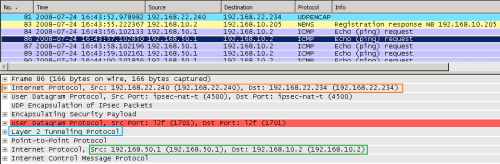
Figure14: Wireshark on ISA - XP Client with IP Routing Enabled: Foreign ICMP Echo Request Message Injected into the VPN Tunnel: IP Source Address Off-Subnet
But we cannot see any ICMP Echo Reply messages, thus I was not able to "establish" a connection with the host behind ISA.
In fact, my packets did not even reach the specified destination.
Why ?
Because the ISA firewall was between the VPN client and the 192.168.10.2 host.
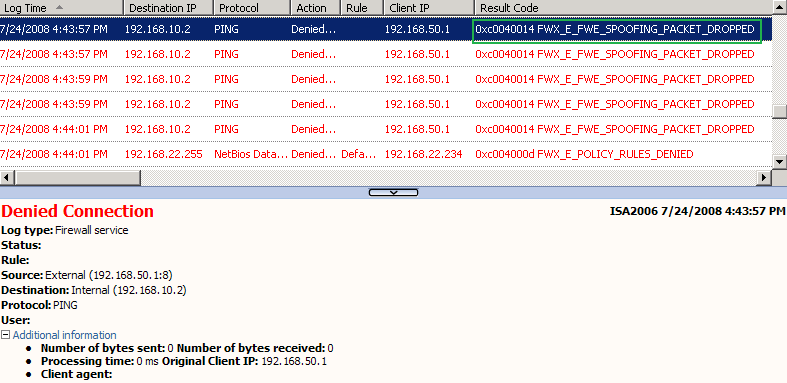
I've also started the live logging on ISA. Looking at it, we can view the ping packets being dropped by ISA as spoofed, see Figure15.
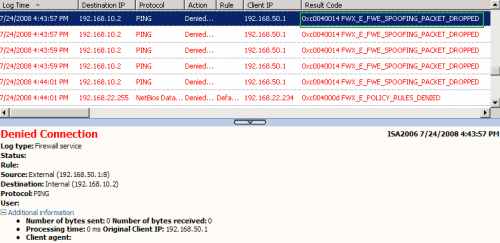
Figure15: Logs on ISA - The IP Spoof Detection Feature Blocked the Foreign ICMP Echo Request Message Injected into the VPN Tunnel: IP Source Address Off-Subnet
ISA includes, turned on by default, an advanced anti-spoofing mechanism. ISA uses the concept of Networks. For example the default Internal Network includes only the 192.168.10.0/24 subnet. If a host located on this Network, would have, say the 192.168.123.56 IP address, ISA will drop any packets from this host, as spoofed, because only pakets sourced with an IP address from 192.168.10.0/24 are expected to reach ISA's internal interface.
These checks are part of ISA's anti-spoofing mechanism, which, as said above, is on by default. ISA knows that the ping packets sent by the attacker, should not come from that direction, only packets sourced with the 192.168.10.205 messages are supposed to be received from that VPN client.
You may wonder, what if the IP address of the attacker is an on-subnet one ?
To make a quick test, I've configured static IP addressing for the VPN clients on ISA, by defining a static pool of IP addresses, 192.168.50.1-192.168.50.20.
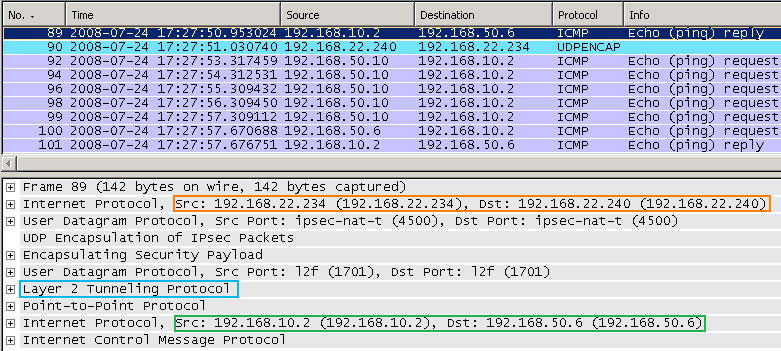
Now the VPN client, physically located on the 192.168.50.0/24, receives the 192.168.50.6 IP address for its PPP adapter, see Figure16, which shows an Echo Reply message from a host behind ISA, 192.168.10.2, sent to the VPN client, as response to an earlier Echo Request message.

Figure16: Wireshark on ISA - XP Client with IP Routing Enabled: Normal Packet Sent over the VPN Tunnel
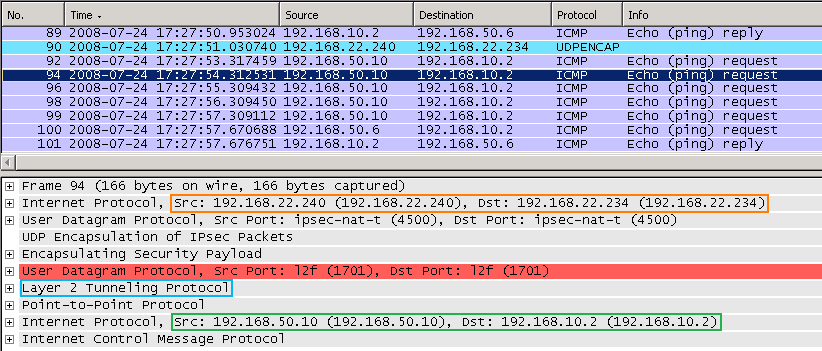
And I will repeat the "attack", this time from the 192.168.50.10 host, see Figure17.
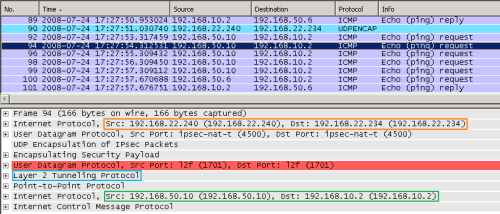
Figure17: Wireshark on ISA - XP Client with IP Routing Enabled: Foreign ICMP Echo Request Message Injected into the VPN Tunnel: IP Source Address On-Subnet
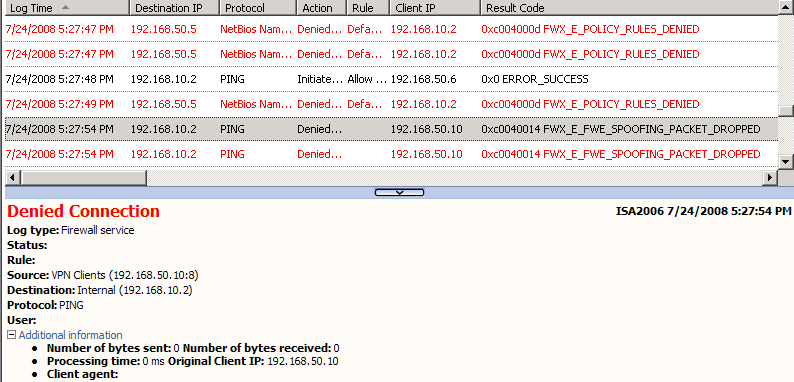
And again the same result, ISA drops these packets as spoofed, see Figure18.
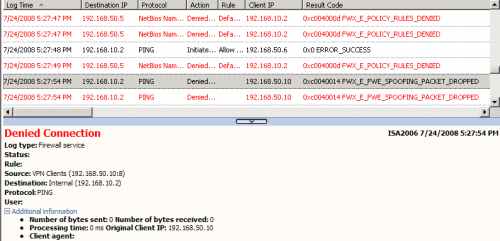
Figure18: Logs on ISA - The IP Spoof Detection Feature Blocked the Foreign ICMP Echo Request Message Injected into the VPN Tunnel: IP Source Address On-Subnet
Using its anti-spoofing detection methods, ISA knows that the ping packets sent by the attacker, should not come from that direction, only packets sourced with the 192.168.50.6 messages are supposed to be received from that VPN client.
As we have seen, ISA is capable of defeating certain attacks, which may come as a result that IP routing was enabled on the VPN client's machine.
However, this setting should stay off.
VPN-Q 2006 takes care of this aspect.
A default check performed by the VPN-Q 2006, is the status of the IP routing setting. This is part of the System Overview Checks, see Figure19 and Figure20. As can be noted, the client was not realesed from quarantine.
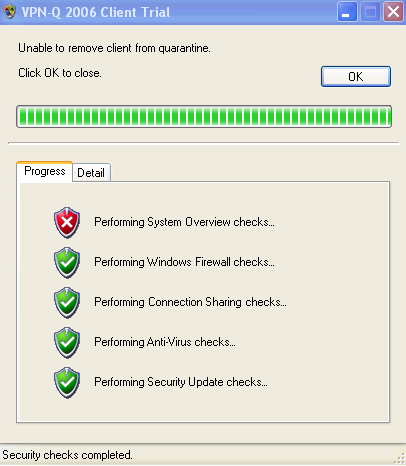
Figure19: VPN-Q 2006 Client - Failed: System Overview
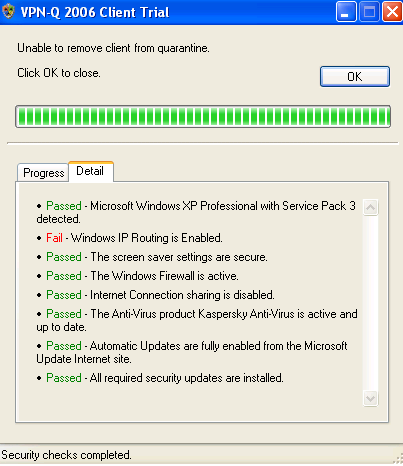
Figure20: VPN-Q 2006 Client - Failed Detail: Windows IP Routing Is Enabled
6.2 ICS - Internet Connection Sharing Status
As discussed in this already mentioned article: http://www.isaserver.org/tutorials/2004fixipsectunnel.html
even when IP routing is disabled, if the user enables ICS on the VPN adapter, the same risks appear.
So we will repeat one more time the above "attack", this time with IP routing disabled, and ICS enabled on the VPN adapter. I've received a message on the VPN client about the needed network for ICS, 192.168.0.0/24, and my physical adapter was configured to use an IP address from this range, I've just put back the original settings on this adapter.
The VPN client receives an IP address from the corporate internal network, on-subnet IP address.
I've started a Wireshark trace on the VPN client, on its physical adapter.
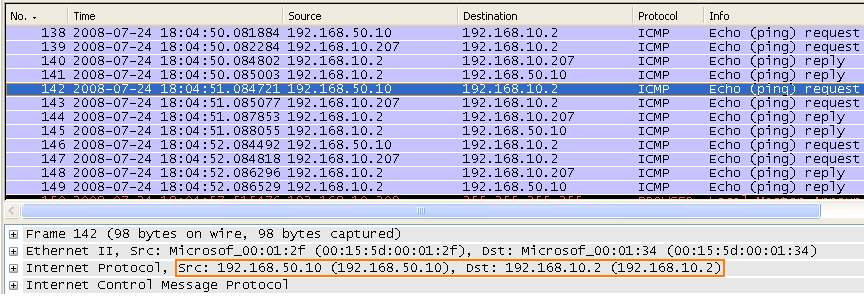
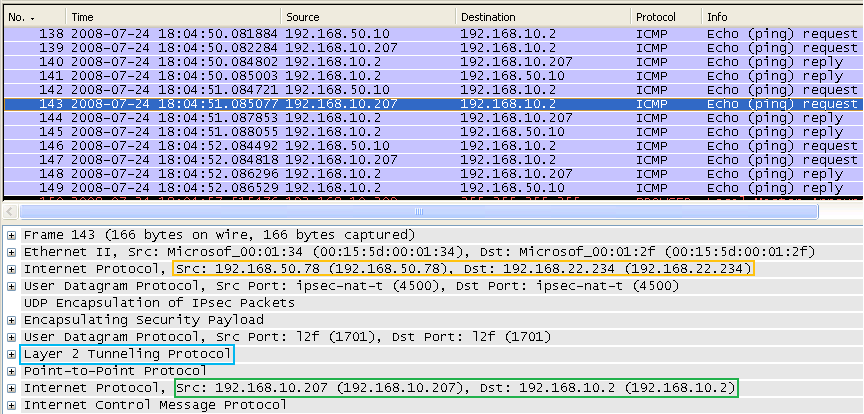
We can see in Figure21, the ICMP Echo Request message sent by the "attacker", 192.168.50.10.
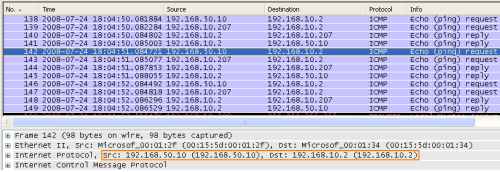
Figure21: Wireshark on the XP Client with ICS Enabled on the VPN Connection - Foreign ICMP Echo Request Message Injected into the VPN Tunnel: The Source Address
And from Figure22 we can view that the ICMP message was NAT-ed, because ICS is enabled, and sent over the VPN link.
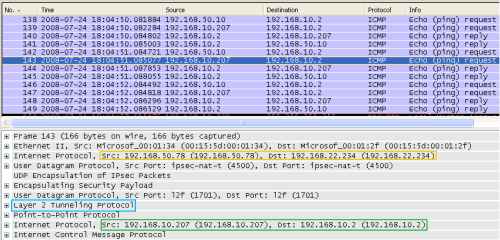
Figure22: Wireshark on the XP Client with ICS Enabled on the VPN Connection - Foreign ICMP Echo Request Message Injected into the VPN Tunnel: Packet Gets NAT-ed
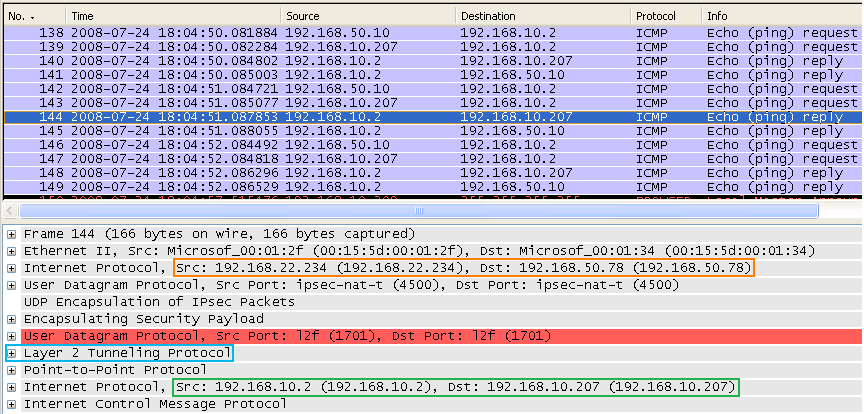
And now a ICMP Reply message is received(I have created an access rule on ISA allowing Ping from the VPN Clients Network to the Internal Network), see Figure23. This message is destined the VPN client, destination IP address 192.168.10.207.
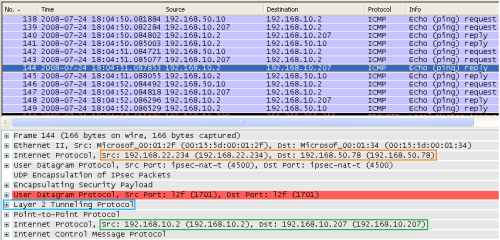
Figure23: Wireshark on the XP Client with ICS Enabled on the VPN Connection - An ICMP Echo Reply Message Is Returned
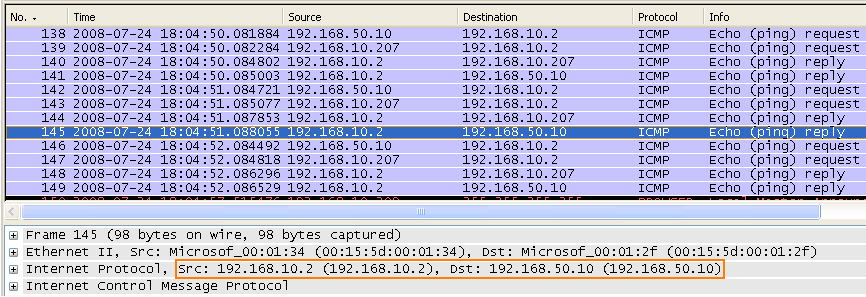
NAT is applied in reverse now, and the ICMP Reply message is sent to the "attacker", see Figure24.
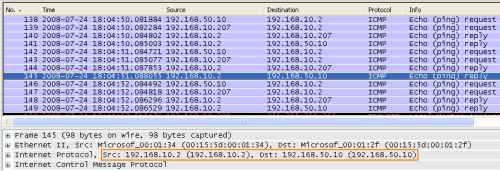
Figure24: Wireshark on the XP Client with ICS Enabled on the VPN Connection - The ICMP Echo Reply Message Is Forwarded
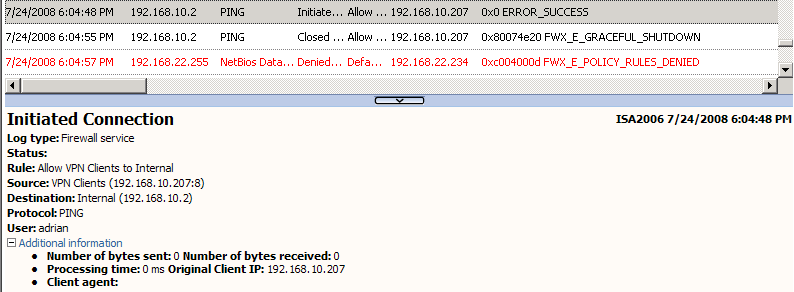
Also, the log on ISA, shows that Ping was allowed, see Figure25.
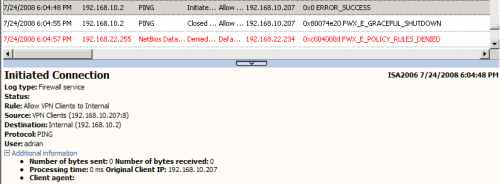
Figure25: ISA Log - XP Client with ICS Enabled on the VPN Connection - Foreign Ping Allowed
So, this time, due to the NAT process introduced by ICS, the anti-spoofing mechanisms on ISA can do nothing, because the packets are sourced with the correct IP address. Another easy to execute attack.
ISA can reduce the damages though, if configured correctly, to allow only needed protocols from the VPN client to the needed internal hosts, thus to limit the attack area. With ISA, as opposed to other VPN remote access servers which allow by default everything from the VPN clients to the internal network, you can easily create a granular policy for specifing users or groups.
Also application layer filtering is applied, if available, over the VPN clients' traffic.
It's always nice to have the practical means to prevent users doing stupid things.
VPN-Q 2006 easily solves the ICS issue.
A default check performed by the VPN-Q 2006 Client, is the status of the ICS setting, see Figure26 and Figure27. As can be noted, since ICS was enabled, the client was not released from quarantine.
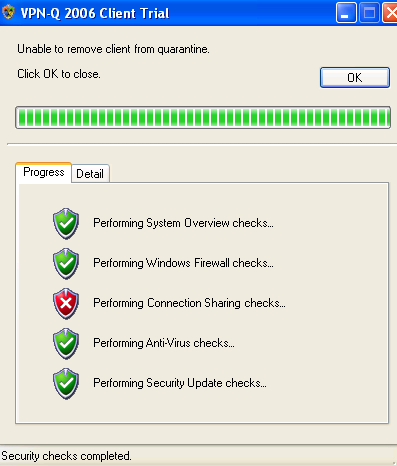
Figure26: VPN-Q 2006 Client - Failed: Connection Sharing
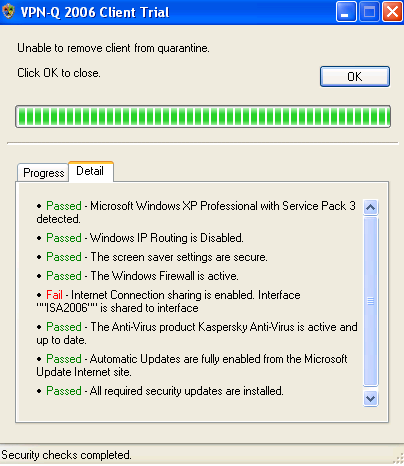
Figure27: VPN-Q 2006 Client - Failed Connection Sharing Detail: Internet Connection Sharing Is Enabled
6.3 Antivirus Checks
Other default checks performed by the VPN-Q 2006, are the antivirus checks.
It's vital to have an antivirus solution installed on your machine connected to the Internet.
And it is also important to keep the antivirus definitions up to date, otherwise, the antivirus software becomes inefficient.
VPN-Q 2006 verifies if an antivirus program exists on the VPN users's machine, see Figure28 and Figure29.
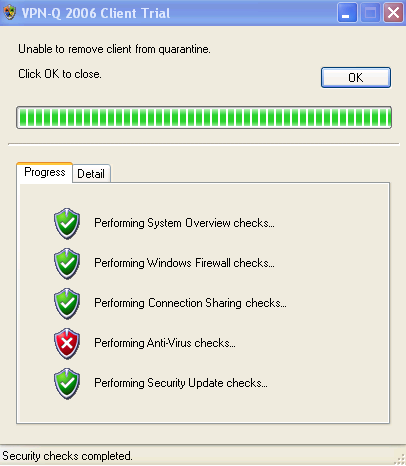
Figure28: VPN-Q 2006 Client - Antivirus Checks Failed
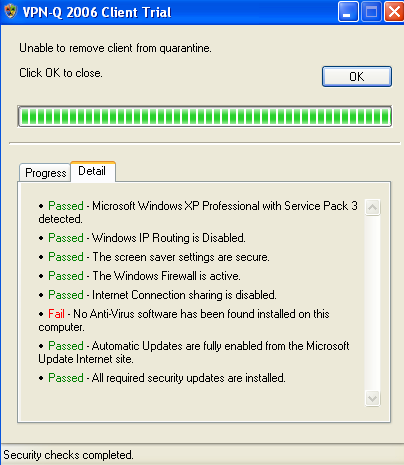
Figure29: VPN-Q 2006 Client - Antivirus Checks Failed Detail: Antivirus Software Not Found
VPN-Q 2006 also verifies if the antivirus definitions are up to date.
As can be noted from Figure30, the user has installed an antivirus on his machines, but the anitvirus definitions are out of date.
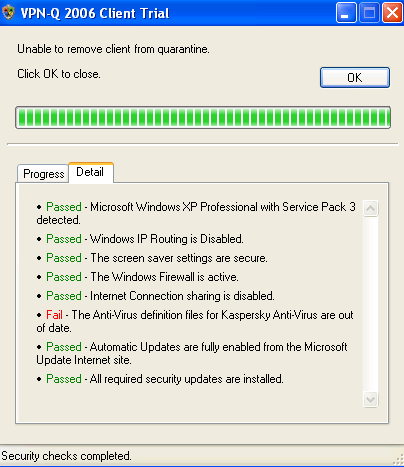
Figure30: VPN-Q 2006 Client - Antivirus Checks Failed Detail: Antivirus Definitions Out of Date
Also the VPN-Q 2006 verifies if the antivirus program is enabled on the VPN users's machine.
Because, usually, the antivirus programs introduces some performance issues, and the computer may run slower, the user can be tempted to disable the antivirus software, see Figure31. As can be noted, this user has disabled the antivirus on his machines.
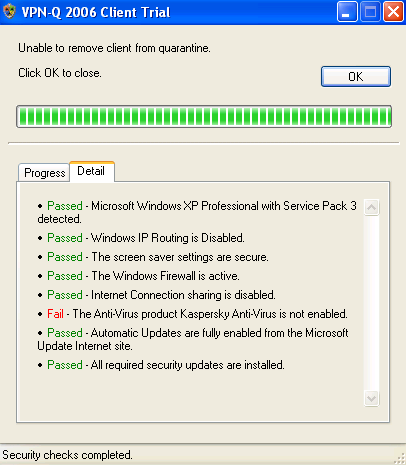
Figure31: VPN-Q 2006 Client - Antivirus Checks Failed Detail: Antivirus Disabled
6.4 Personal Firewall Checks
The antivirus is just a part of the protection suite which must be enabled on your machine.
It is also very important to have installed and enabled a personal firewall on your machine.
By default, VPN-Q requires that minimum the Windows Firewall to be enabled on the VPN user's machines.
In Figure32 and Figure33, we can see that the user has disabled the Windows Firewall, and has not installed other third-party firewall.
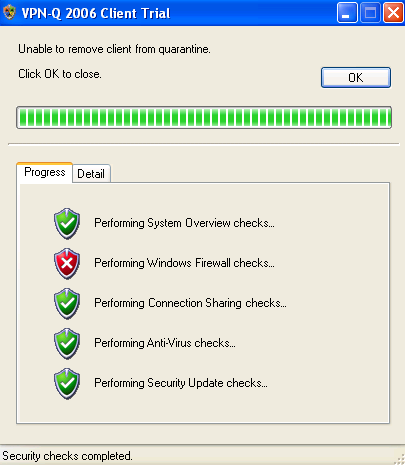
Figure32: VPN-Q 2006 Client - Firewall Checks Failed
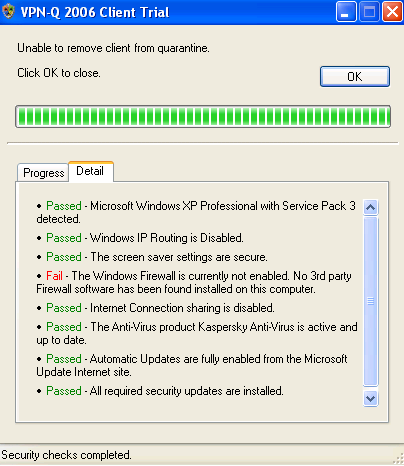
Figure33: VPN-Q 2006 Client - Firewall Checks Failed Detail: Firewall Disabled
If the Windows Firewall is enabled on the client computer, VPN-Q 2006 checks by default if the File and Print sharing exception is enabled on the firewall.
Note that this check is performed only when the Windows Firewall is used, if a third-party firewall exists, this check will not be available.
If the File and Print sharing exception is enabled on the firewall, the VPN user will get a warning, see Figure34 and Figure35.
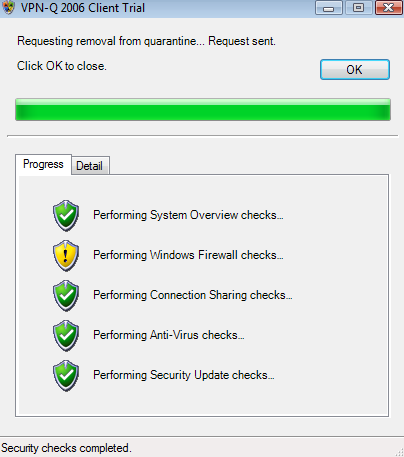
Figure34: VPN-Q 2006 Client - Personal Firewall Checks Warning
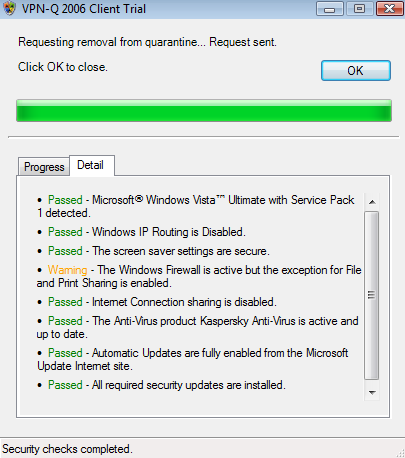
Figure35: VPN-Q 2006 Client - Personal Firewall Checks Warning Detail: File and Print sharing exception is enabled
As can be seen in Figure36, a third-party firewall was installed and is enabled on the client machines.
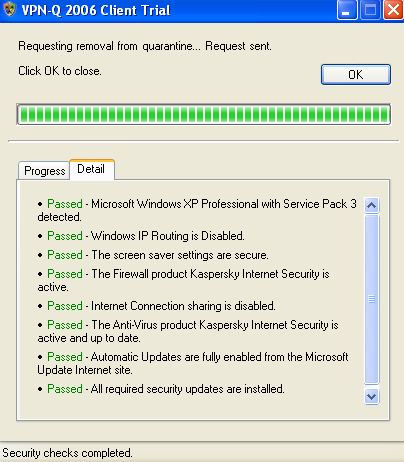
Figure36: VPN-Q 2006 Client - Firewall Checks Detail: Third-Party Firewall Enabled
6.5 Automatic Updates and Security Updates Status
It's not a secret anymore that every major OS out there has a history of security patches.
Therefore is critical to make sure that the OS has installed the latest security patches.
And it is vital as well to make sure that an automatic method of updating is in place. Is hard to keep up by manually updating a system.
By default VPN-Q 2006 verifies the status of Automatic Updates. In Figure37 and Figure38, we can see that the user has simply disabled completely Automatic Updates.
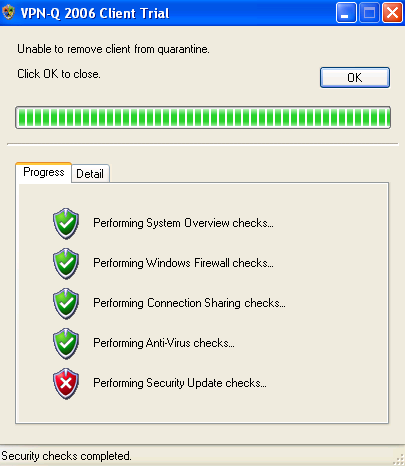
Figure37: VPN-Q 2006 Client - Security Update Checks Failed
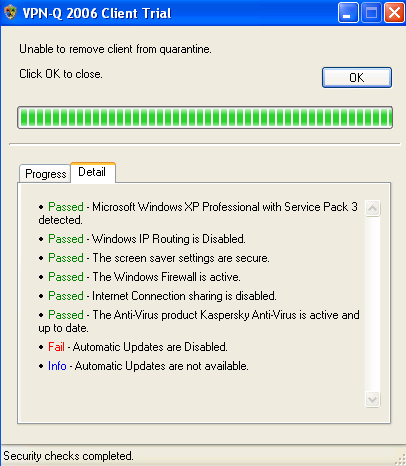
Figure38: VPN-Q 2006 Client - Security Update Checks Failed Detail: Automatic Updates Disabled
As can be viewed in Figure39, the user configured the updates to be downloaded automatically, but choosed to install them manualy, so an update was downloaded but not installed. If this user forgets or delays the installation of security patches, he or she may be vulnerable to certain exploits targeting the vulnerabilities addressed in those security updates.
Note that only missing security patches rated as Critical or Important will make this check to fail. Missing ones rated as Low, Moderate, Mandatory or unrated will produce only a warning.
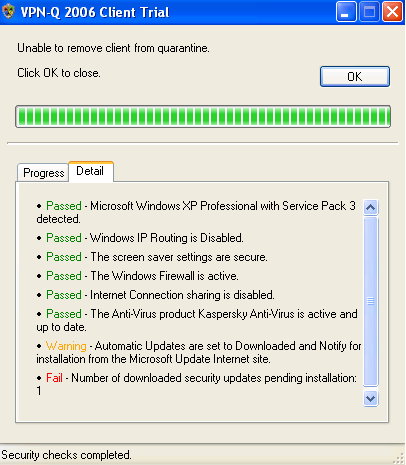
Figure39: VPN-Q 2006 Client - Security Update Checks Failed Detail: Windows is Not Up to Date
By default, VPN-Q is not that restrictive in a good sense. The user may set the Automatic Updates status to Notify but do not Download, and carefully keep his or her computer up to date. If all the security updates were installed, VPN-Q 2006 will issue an warning, and release this user from quarantine, see Figure40 and Figure41.
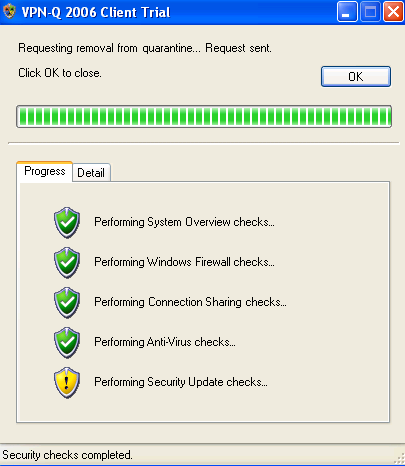
Figure40: VPN-Q 2006 Client - Security Update Checks Warning
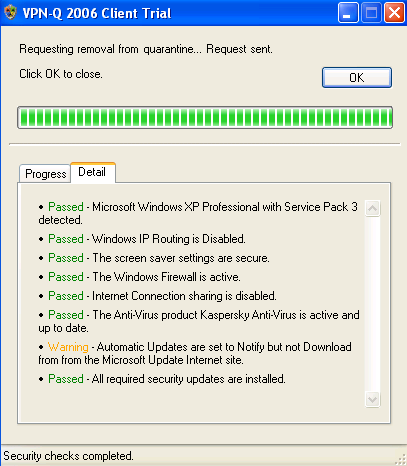
Figure41: VPN-Q 2006 Client - Security Update Checks Warning Detail: Automatic Updates set to Notify but not Download
6.6 Minimum Operating System and Service Pack Level
Also by default, VPN-Q 2006, verifies the minimum operating system allowed and the minimum service pack level installed.
So at a mimimum: Windows XP Home Edition SP2, Windows XP Pro SP2, Windows XP Pro x64, Windows XP Media Center Edition 2005 or Windows Vista(Home Basic, Home Premium, Ultimate, Business, Enterprise) are required.
In Figure42 and Figure43 we can see that this test was passed, because Windows XP Pro SP3 was detected.
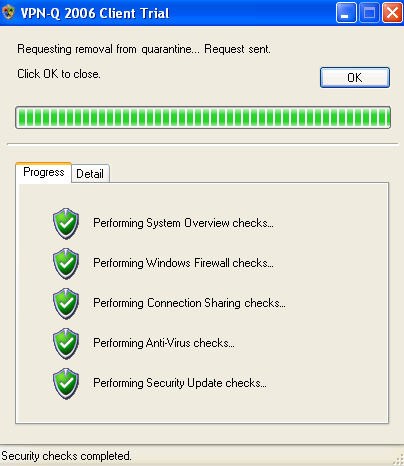
Figure42: VPN-Q 2006 Client - System Overview Checks Passed
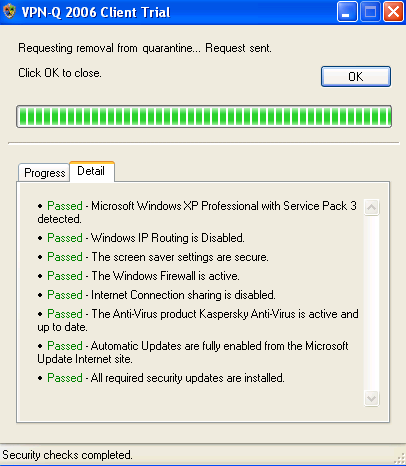
Figure43: VPN-Q 2006 Client - System Overview Checks Detail: Windows XP Pro SP3 Detected
6.7 Screen Saver Status
Another default check performed by VPN-Q 2006 is the status of the Screen Saver.
In order to be successfully released from quarantine, the user must have the Screen Saver enabled and password protected.
In Figure44 and Figure45, we can see that the Screen Saver was not password protected, thus the VPN client failed the System Overview checks.
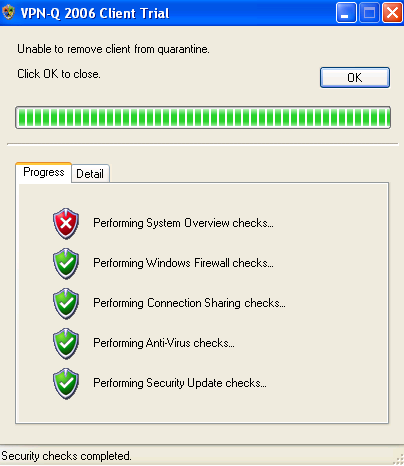
Figure44: VPN-Q 2006 Client - System Overview Checks Failed
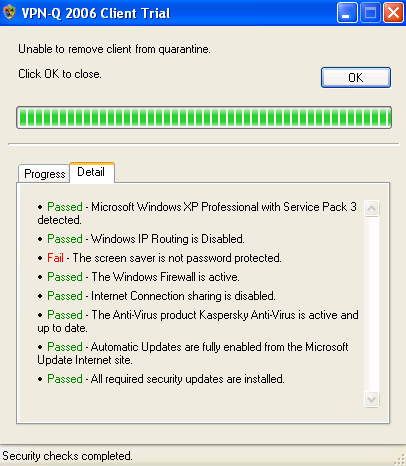
Figure45: VPN-Q 2006 Client - System Overview Checks Failed Detail: The Screen Saver Is Not Password Protected
The maximum allowed wait time is 15 minutes. You'll get a warning if this period is greater than 15 minutes, but you'll be released from quarantine, see Figure46 and Figure47.
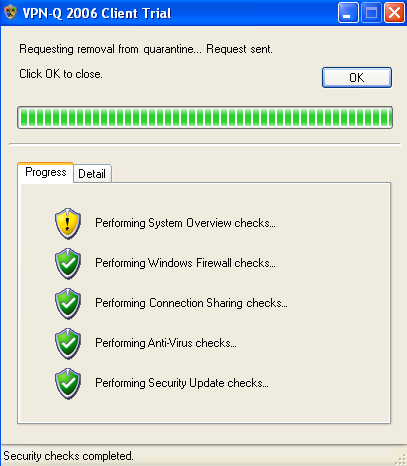
Figure46: VPN-Q 2006 Client - System Overview Checks Warning
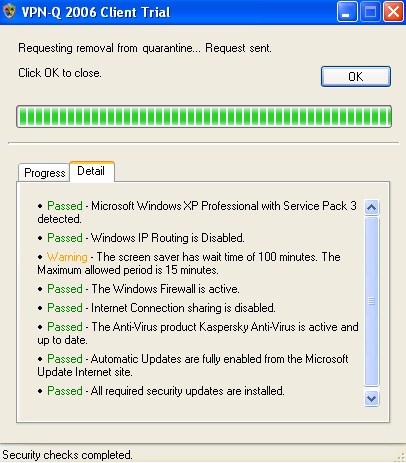
Figure47: VPN-Q 2006 Client - System Overview Checks Warning Detail: The Screen Saver Has a Long Wait Time
7. Use Default Gateway on Remote Network
There is one thing that VPN-Q 2006 does not verify, and you might desire to verify: if the Use Default Gateway on Remote Network checkbox on the VPN adapter on the VPN client is checked, see Figure48.
It would be good that once the VPN client is conencted, to tunnel all the traffic through the VPN server, since the VPN client's machine is now a part of the corporate network. Thus the corporate policies might block access to porn sites, might block the use of IM programs and so on.
If this checkbox is not checked, the user can access Internet resources directly, and only traffic destined to the corporat network is send through the VPN tunnel, thus the user can bypass the company's policies.
By default, with the VPN-Q 2006 default client package, all the traffic from the VPN client is send through the VPN tunnel. However, VPN-Q 2006 does not perform any checks on the above mentioned setting, thus a smart user might be able to modify the default settings.
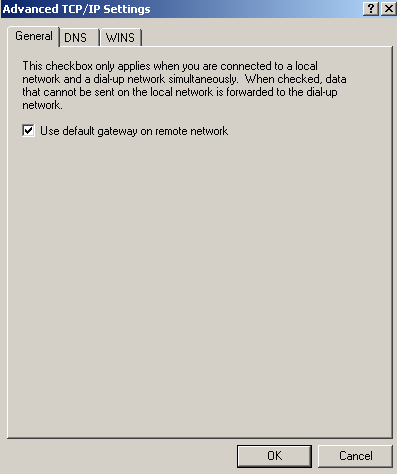
Figure48: VPN Connection - Use Default Gateway on Remote Network
|