|
27.01.2008
The Hunt For HTTP Signatures - ISA 2006 Firewall HTTP Filter - Part 2: IM Blocking
- 1. The Signature of Yahoo Messenger
- 2. The Signature of Windows Live Messenger
- 3. The Signature of Google Talk
Now let's hunt some signatures.
1. The Signature of Yahoo Messenger
Starting with a popular application like Yahoo Messenger. While it's a nice chat tool(and much more) it can affect work productivity (and your network's health and safety). Therefore you may want to prevent its use in your office.
On ISA 2006 I have created a test rule allowing HTTP, HTTPS and FTP for All Users (unauthenticated rule). See Figure23.

Figure23: ISA 2006 Access Rule
Always allow through ISA only needed traffic. An "Allow All" rule makes every firewall pretty dumb. I did not use authentication on this rule because I want to obtain, as much as possible, a clean and simple Wireshark capture. The first tests will be made with a machine that it's only a SecureNAT client. ISA is a domain member. In a production environment you should use authentication on your rules. For that, depending on the traffic required, make your clients Web Proxy Clients and/or Firewall Clients(SecureNAT clients cannot authenticate). As we will see later in this article, switching between ISA clients and using or not authentication on the above rule, will have certain effects on various applications.
For the internal DNS server I have a separate rule. The clients query this internal DNS server which uses ISP DNS servers as Forwarders.
The problem with Yahoo Messenger is the fact that it can be configured to use only HTTP requests thus if we had allowed only HTTP and HTTPS on our firewall it will be able to connect. However the HTTP Filter can help us blocking it.
On ISA 2006 Firewall I had installed the Supportability Update Package in order to benefit from the improved log viewing functionality. The Firewall Client is disabled on the machine which runs Yahoo Messenger.
Start the live log on ISA and a Wireshark capture(on the correct interface) on the client on which Yahoo Messenger is running.
And then start Yahoo Messenger and login.
Stop the live log on ISA and the Wireshark capture.
Time to analyze them. We need to follow the HTTP flow, starting with the first client request and first server reply packet.
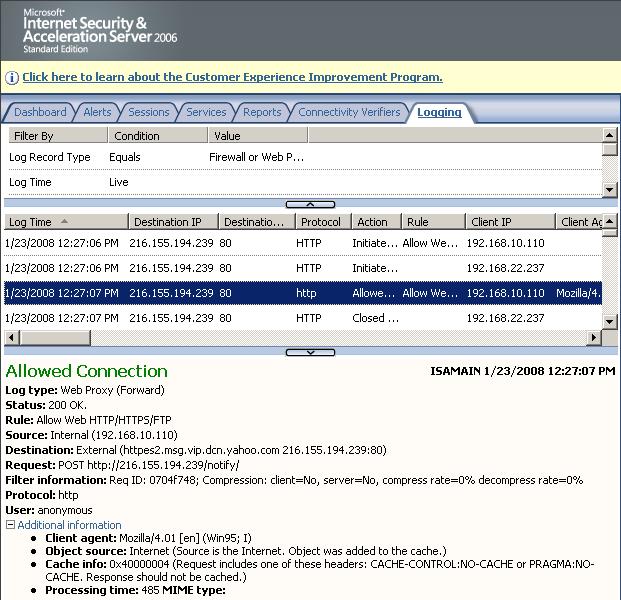
A quick look at ISA's log. See Figure24.
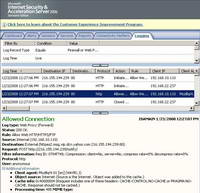
Figure24: ISA Log Yahoo Messenger Allowed
We can see that ISA has allowed a packet using the "POST" method. The Client Agent(User Agent) does not tell us much.
So no joy with ISA's log.
In RFC2616 Hypertext Transfer Protocol -- HTTP/1.1, an "Internet Official Protocol Standards" (STD 1), the User Agent is defined as:
- "the client which initiates a request. These are often browsers, editors, spiders (web-traversing robots), or other end user tools", "The User-Agent request-header field contains information about the user agent originating the request.".
- "The field can contain multiple product tokens and comments identifying the agent and any subproducts which form a significant part of the user agent. By convention, the product tokens are listed in order of their significance for identifying the application.".
So the User-Agent string can indicate for example which browser you are using, its version number and details about your system, such as operating system and version. Therefore the Web server will be aware of the browser you use and it can provide content that is tailored for that specific browser. You can find out more about the User-Agent reading the following Microsoft doc: Understanding User-Agent Strings.
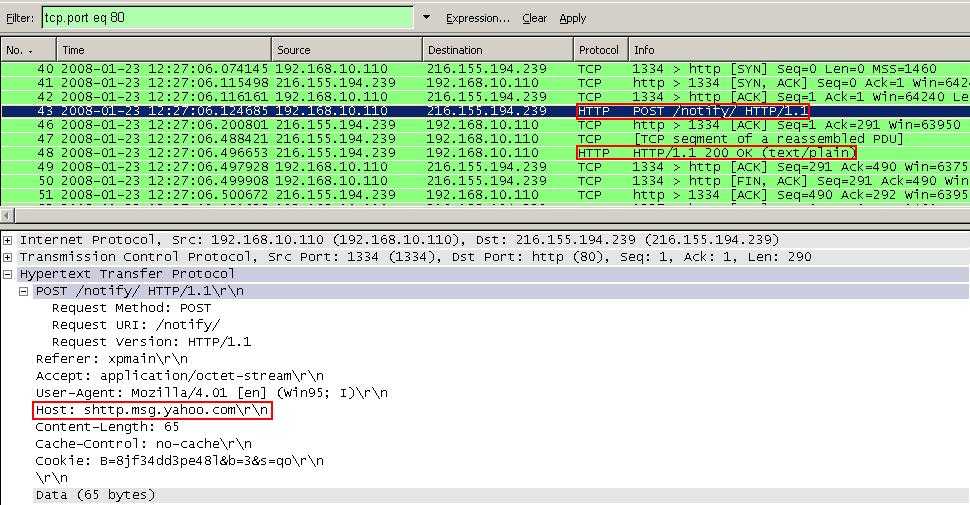
Let's analyze the corresponding packet from the Wireshark capture. Maybe there is another "helpful" field within the Request Header(RFC2616 Section 5.3). See Figure25.
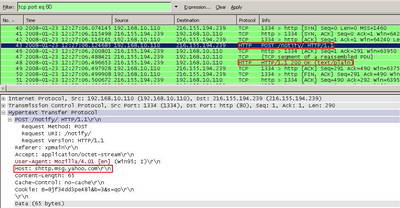
Figure25: Wireshark Capture Yahoo Messenger Allowed
From this capture we can spot something interesting in the Host header field, the "shttp.msg.yahoo.com" pattern. Actualy if you scroll the capture you will see that this patern repeats. The "*.msg.yahoo.com" appears very often("shttp" can be replaced with "insider" for example). It seems that Yahoo Messenger "needs" this host string.
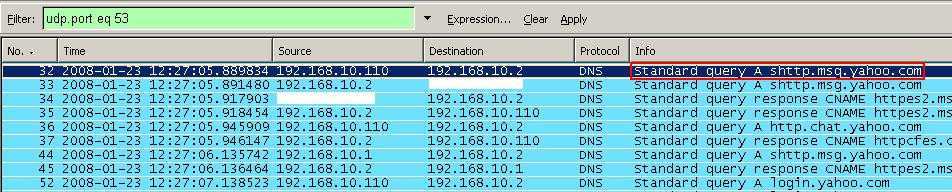
We can also check the DNS queries from this capture. See Figure26.
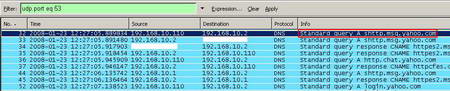
Figure26: DNS Queries
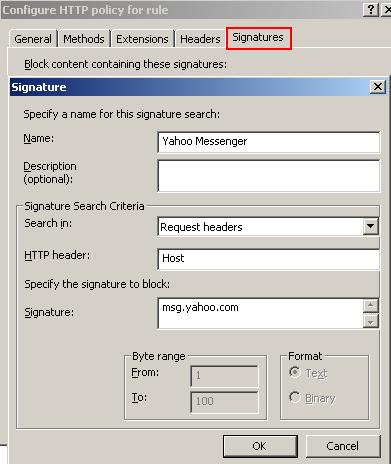
So "msg.yahoo.com" can represent the signature for Yahoo Messenger, found in the Request Headers, the Host header field. If we look at the Common Application Signatures Microsoft doc, we can see that the same Yahoo Messenger signature is shown.
Time to see if it works. Right click on your ISA web access access rule and click Configure HTTP. See Figure27.
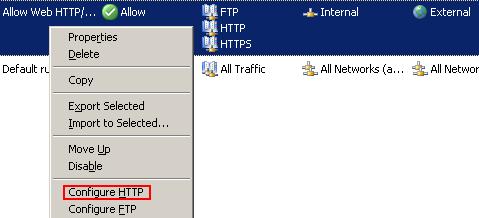
Figure27: Configure HTTP
Click the Signatures tab and add the signature we've spoted for Yahoo Messenger. SeeFigure28.
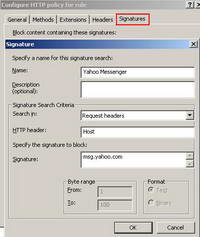
Figure28: Yahoo Messenger Signature
Apply your configuration.
Again start the live log on ISA and a Wireshark capture(on the correct interface) on the client on which Yahoo Messenger is running.
Start Yahoo Messenger and try to login. You will not be able to do that and Yahoo Messenger will be left fuming.
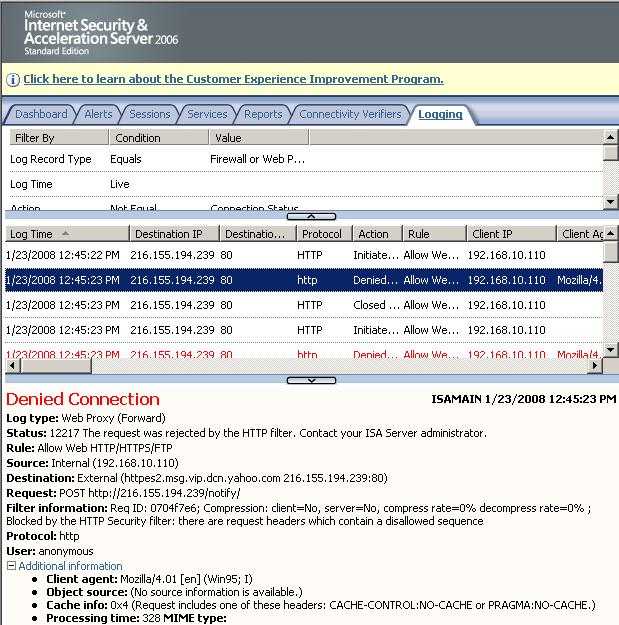
If we analyze the log on ISA we will notice that now ISA has blocked the packet containing the POST method. See Figure29.
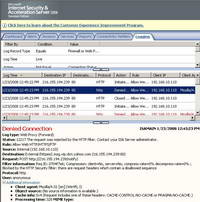
Figure29: ISA Log Yahoo Messenger Blocked
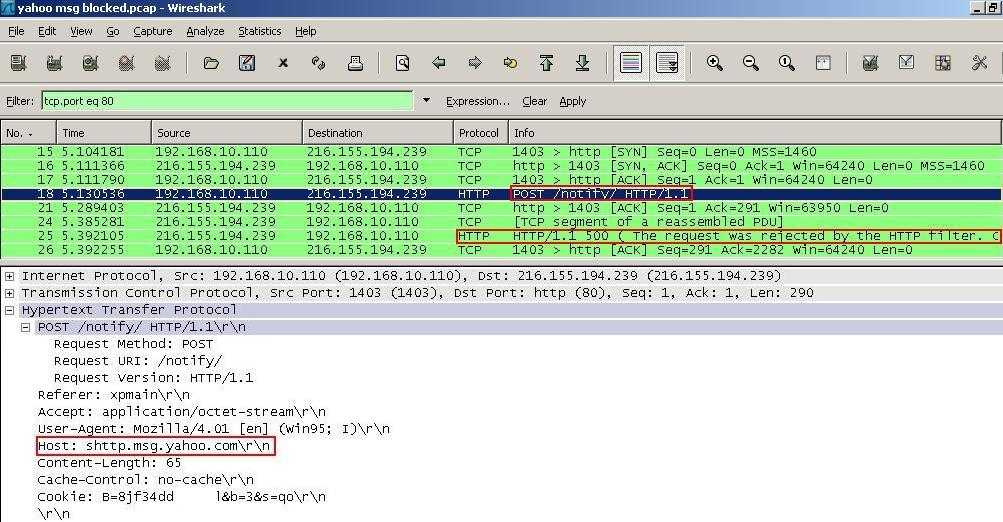
Within the corresponding Wireshark capture we can spot the denied attempts of Yahoo Messenger. See Figure30.
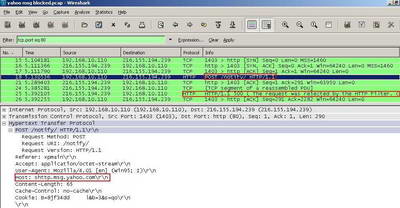
Figure30: Wireshark Capture Yahoo Messenger Blocked
As you might know you can now chat directly within the browser from your Yahoo mail account. However the above signature should block this chat type too, since it is not dependent on a specific User-Agent, it depends on a host.
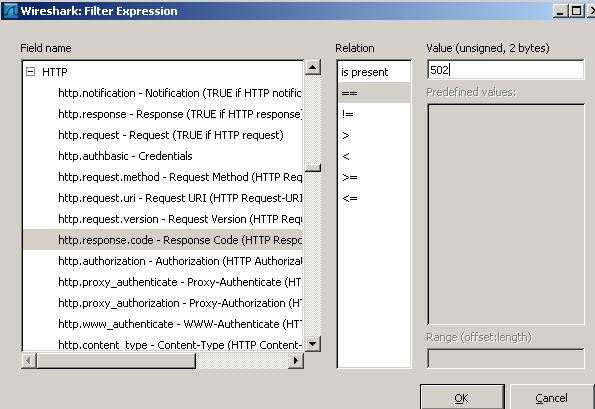
I have taken a Wireshark trace while I'm using my Yahoo mail account from browser(from the login phase). However this resulted in a big Wireshark capture. We need to quickly filter that. A good start will be to see packets denied by ISA(Response Codes 502 and 500). My machine is a Web Proxy client this time. Click the "Expression" button and create the required filter. See Figure31 and Figure32.
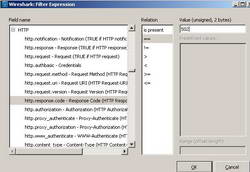
Figure31: Wireshark "http.response.code == 502"

Figure32: Wireshark "http.response.code == 502 or http.response.code == 500"
Write down the frame number. Clear the filter by clicking the "Clear" button.
You can quickly navigate to the desired packet by using the "Go" menu and select "Go to Packet". See Figure33.
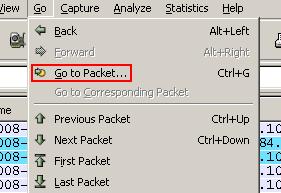
Figure33: Wireshark Go to Packet
Type the packet number and then click "Jump to". See Figure34.
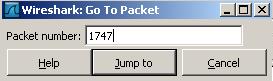
Figure34: Go to Packet number 1747
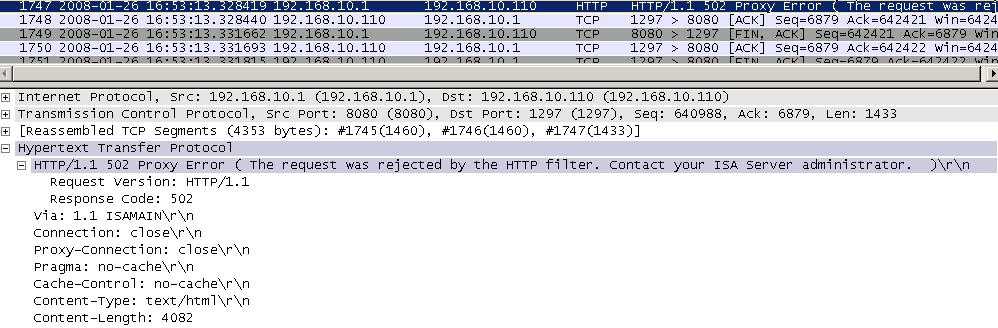
And take a look at this packet. See Figure35.
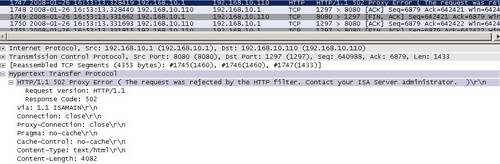
Figure35: Packet number 1747
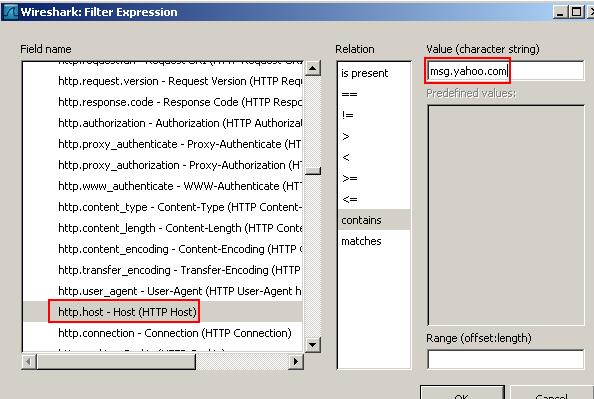
We can view all the packets containing the msg.yahoo.com signature(first clear the current filter). Click the "Expression" button and create the required filter. See Figure36.
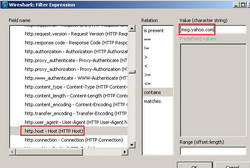
Figure36: Wireshark "http.host - Host (HTTP Host) contains msg.yahoo.com" Filter
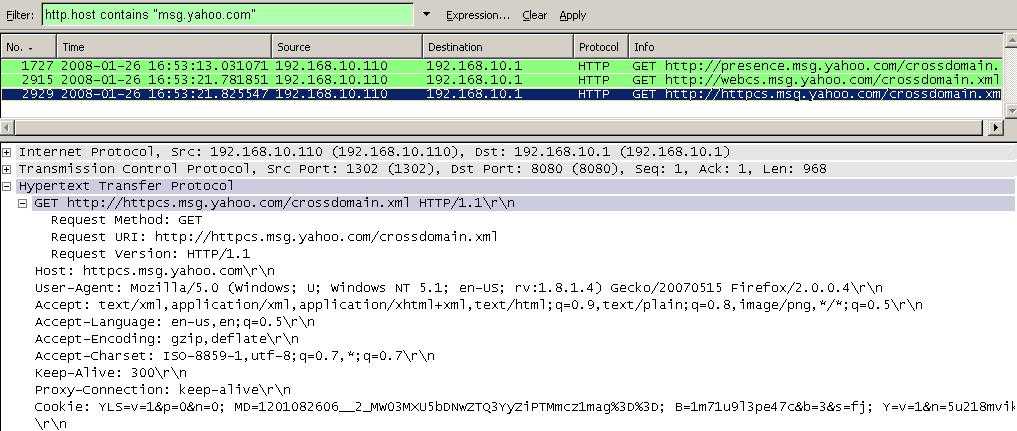
And the corresponding packets to the ones from Figure32 appear. See Figure37.
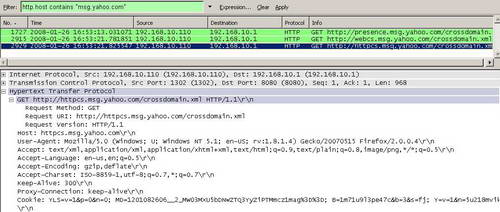
Figure37: Wireshark "http.host - Host (HTTP Host) contains msg.yahoo.com" Filter
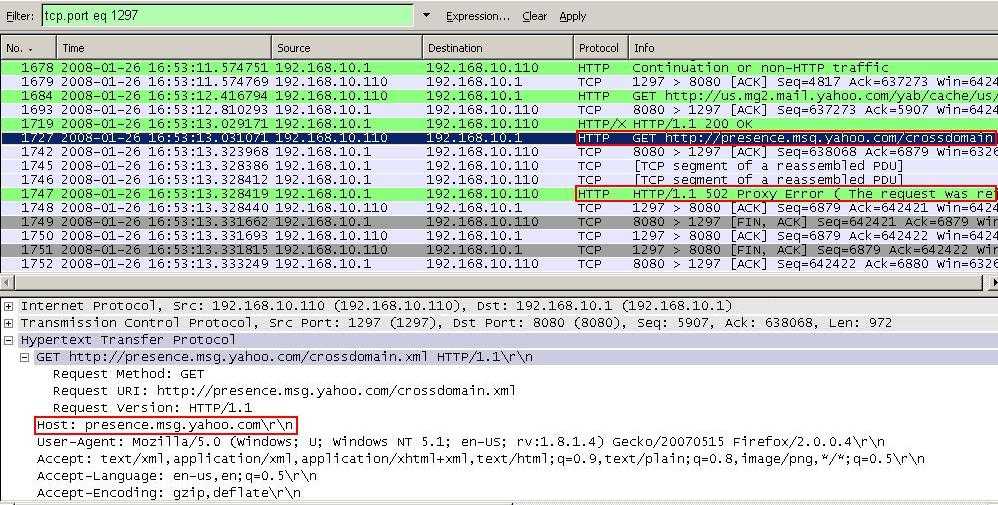
And we can clearly see the packet denied by ISA because it contains our signature pattern.See Figure38.
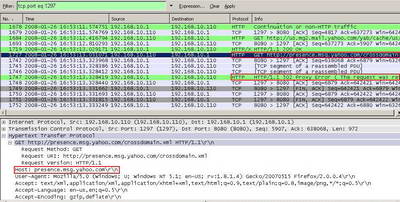
Figure38: Wireshark "tcp.port eq 1297" Filter
2. The Signature of Windows Live Messenger
Next let's try to find out the signature of another popular IM application, Windows Live Messenger. We have the same problem as with Yahoo Messenger, although Windows Live Messenger's default protocol is blocked on ISA(we allow only HTTP and HTTPS with our test access rule), Windows Live Messenger is able to use only HTTP and HTTPS.
Repeat the procedures(start ISA live logging, start a Wireshark capture and login with Windows Live Messenger).
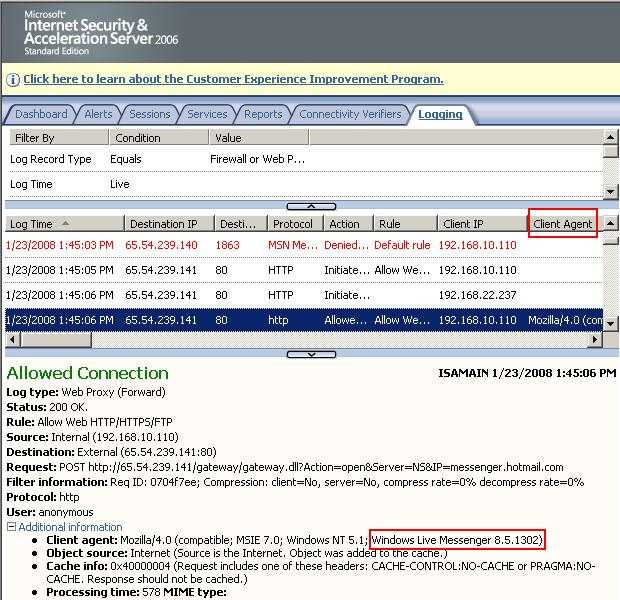
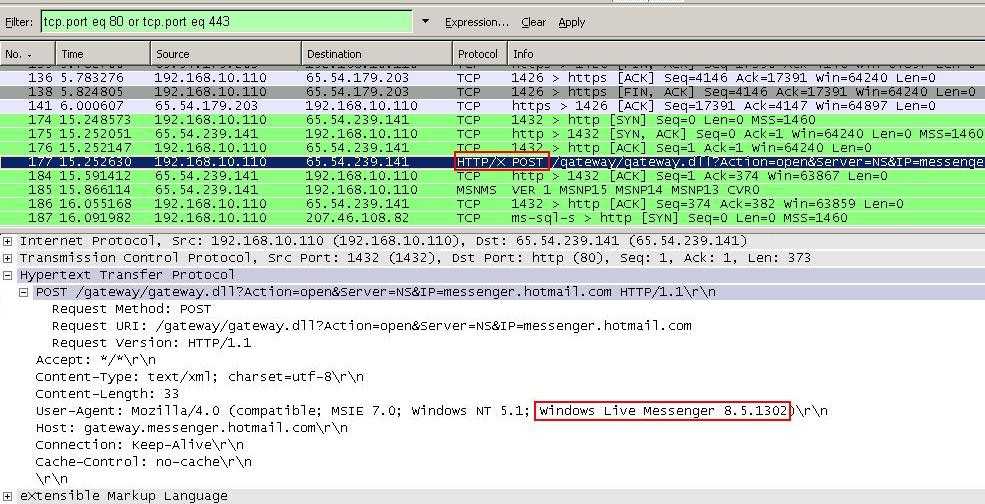
Now if we analyze the log on ISA we can spot within the Request Headers the Client Agent field containing the "Windows Live Messenger 8.5.1302" pattern. See Figure39.
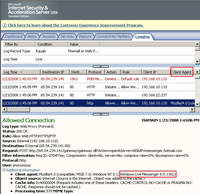
Figure39: ISA Log Windows Live Messenger Allowed
Within the corresponding Wireshark capture look at the same packet. See Figure40.
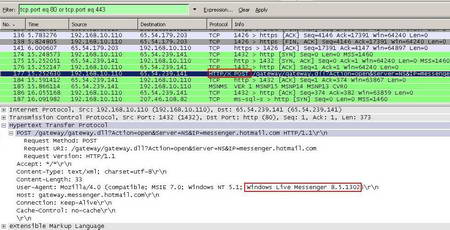
Figure40: Wireshark Capture Windows Live Messenger Allowed
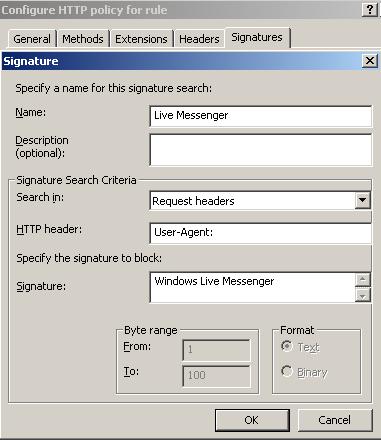
We can conclude that the "Windows Live Messenger" pattern looks like a good possible signature. Obviously we should not include 8.5.1302 because that's the version of the Windows Live Messenger application and versions are changing.
So let's give it a go and configure ISA to block this signatures. See Figure41.
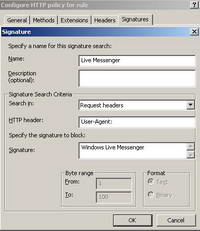
Figure41: Windows Live Messenger Messenger Signature
And try to connect with Windows Live Messenger. And Windows Live Messenger fails to connect. See Figure42.
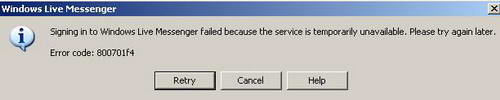
Figure42: Windows Live Messenger Error
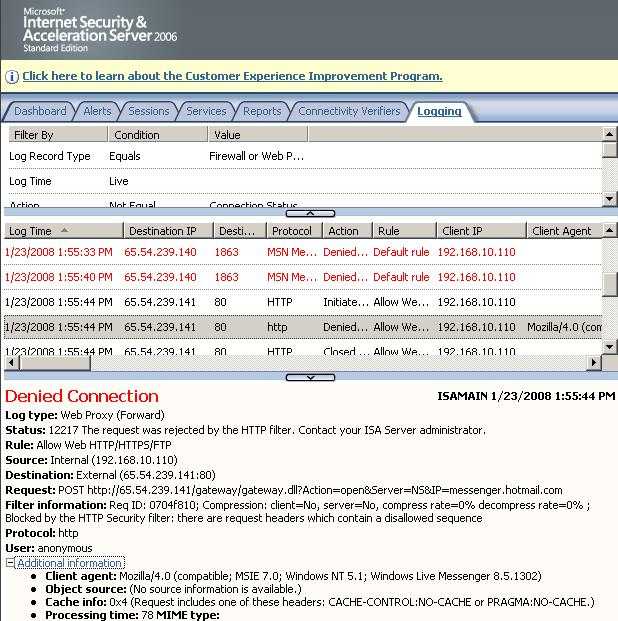
ISA's log tells us that ISA blocked the packet containing the "POST" method. See Figure43.
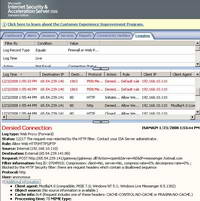
Figure43: ISA Log Windows Live Messenger Blocked
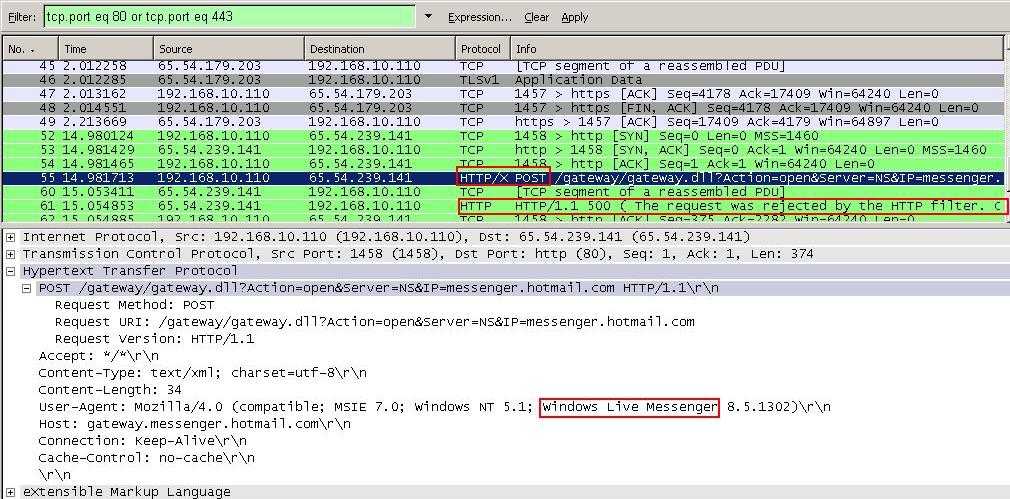
The same thing can be noticed from the corresponding Wireshark Capture. See Figure44.
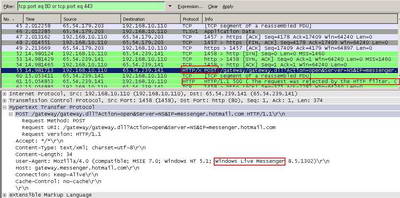
Figure44: Wireshark Capture Windows Live Messenger Blocked
So far so good.
3. The Signature of Google Talk
Another IM client: Google Talk. As you will see, Google Talk is a different kind of beast and might escape through ISA. Google Talk uses an open protocol, XMPP(Extensible Messaging and Presence Protocol), see RFC3920 and RFC3921, both Internet Official Protocol Standards" (STD 1), for more details about XMPP. XMPP can use HTTP binding for users behind restricted firewalls.
First thing to be noted is the fact that Google Talk is by default set to automatically discover the proxy. See Figure45.
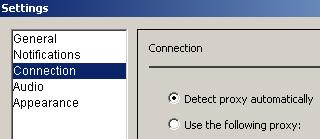
Figure45: Google Talk
So even if you did not set your machine as web proxy client, if Web Proxy Auto-Discovery is enabled on your network Google Talk will use ISA as its proxy.
Time to find out the signature of Google Talk.
Repeat the process used till now on this article an connect with Google Talk.
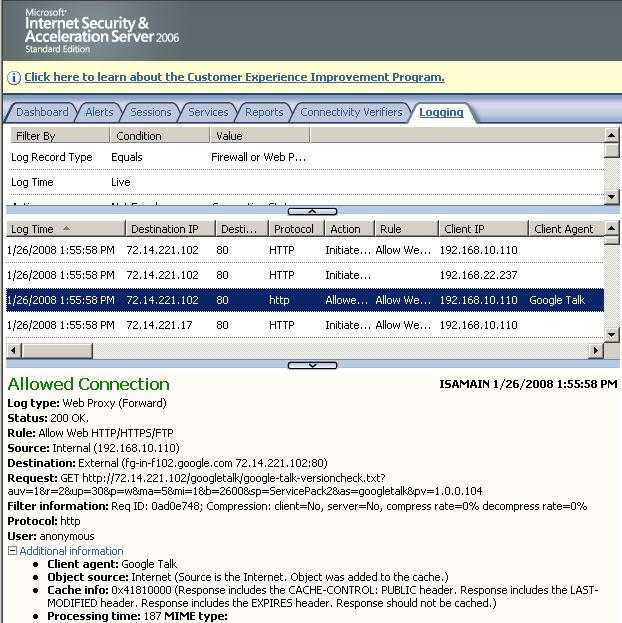
As you start Google Talk, it will issue a version check. See Figure46.
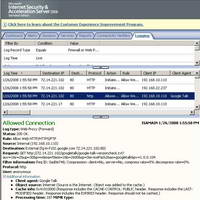
Figure46: ISA Log Google Talk Version Check
Although we did not enter yet our credentials within Google Talk, we already can spot within the User-Agent field something useful: "Google Talk".
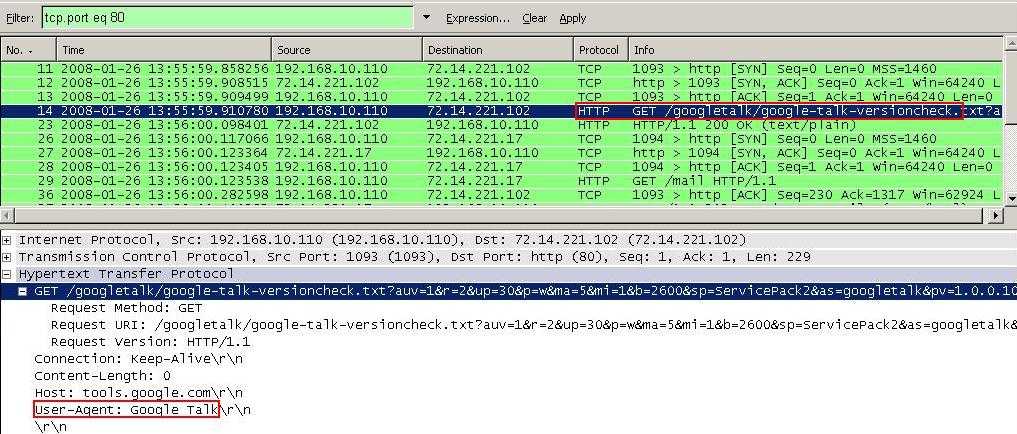
Analyzing the corresponding Wireshark we can notice the same thing. If we look at the following "GET" request we will see the same User-Agent. See Figure47.
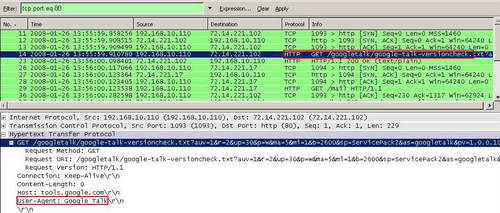
Figure47: Wireshark Google Talk Version Check
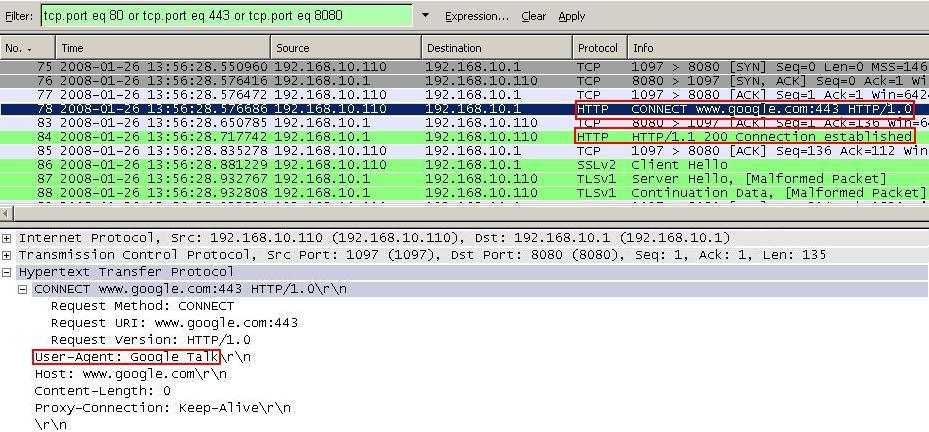
As said before, since I have enabled Web Proxy Auto-Discovery(anyway this machine was set as SecureNAT Client and Web Proxy Client for this test), Google Talk will use ISA as its proxy. Scrolling down through the Wireshark capture we will notice a successful "Connect www.google:443" request from Google Talk. According to RFC2616: "this specification reserves the method name CONNECT for use with a proxy that can dynamically switch to being a tunnel (e.g. SSL tunneling)". See Figure48.
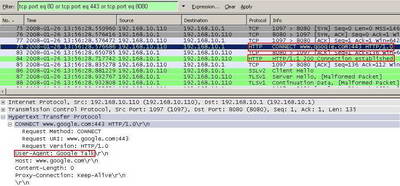
Figure48: Wireshark Google Talk CONNECT
The same User-Agent is used.
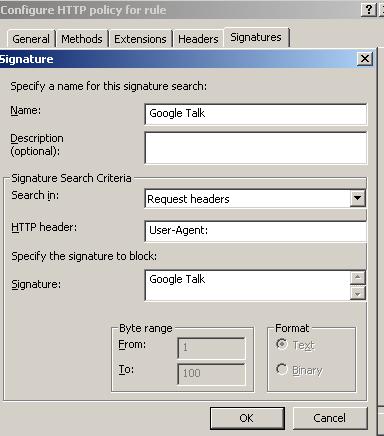
Let's give it a go and configure ISA to block this signature. See Figure49.
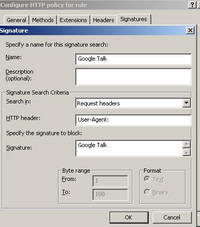
Figure49: Google Talk Signature
My machine is configured as a SecureNAT Client(has as its DG ISA) and Web Proxy Client (using the Automatic Configuration Script).
And surprise: Google Talk is able to connect. What went wrong ?
At a first glance the logs on ISA tell us that something functioned. The "Connect www.google:443" request was blocked. See Figure50.
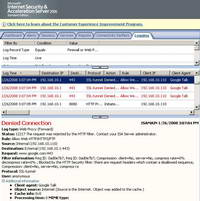
Figure50: ISA Log Google Talk Blocked, Really ?
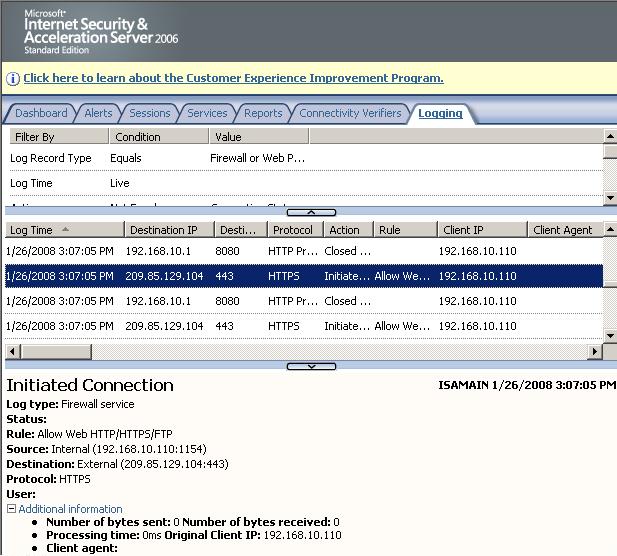
However there are some HTTPS requests allowed by our rule. See Figure51.
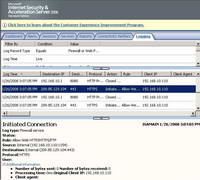
Figure51: ISA Log HTTPS Initiated
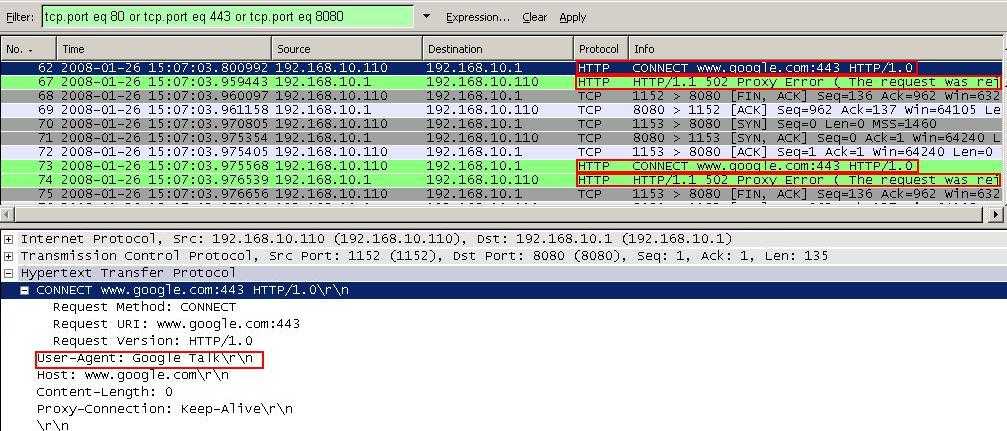
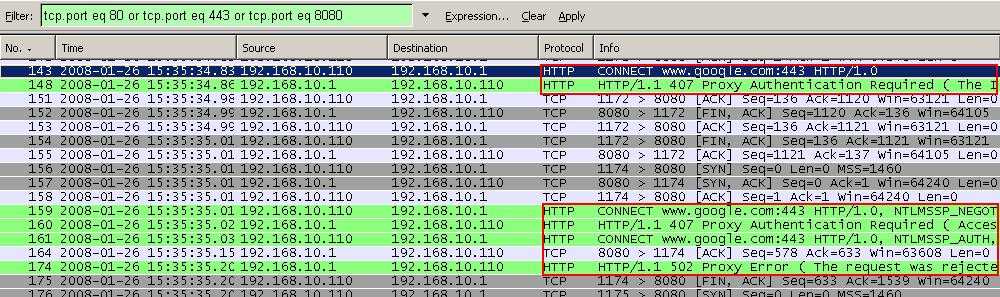
Analyzing the Wireshark capture we can find out more. First we can notice that ISA blocks the "Connect www.google:443" request because it contains the User-Agent "Google Talk". See Figure52.
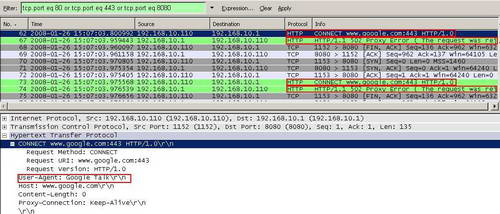
Figure52: Wireshark "Connect www.google:443" Blocked
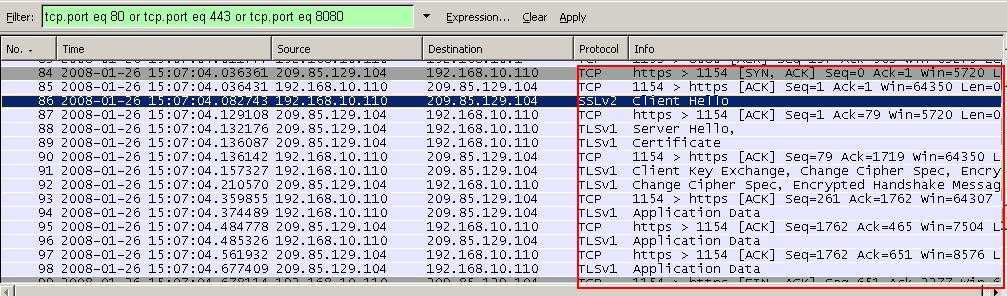
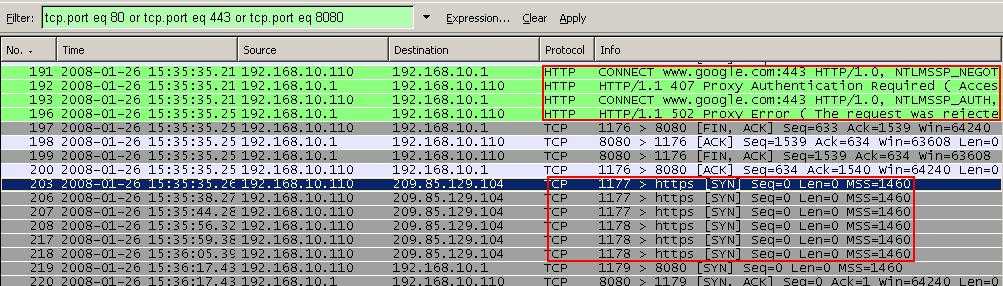
However if we scroll down we find the explanation. Since I do not require authentication on my rule, Google Talk has resumed to be only a SecureNAT client, thus it initiates directly the SSL tunnel(without the "CONNECT" method). ISA cannot inspect its requests since they are encrypted. See Figure53.
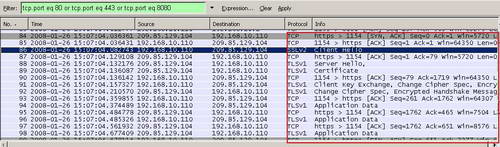
Figure53: Wireshark Google Talk SecureNAT Client
If I go and modify my rule to require authentication(replace "All Users" with "All Authenticated Users", ISA is a domain member) Google Talk cannot connect anymore because it must use the proxy on ISA 2006 Firewall in order to successfully authenticate. See Figure54.
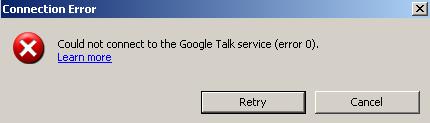
Figure54: Google Talk Connection Error
Let's analyze the corresponding Wireshark capture. As expected, ISA requires authentication, Google Talk obeys and then the "Connect www.google:443" request is blocked by ISA because it contains the User-Agent "Google Talk". See Figure55.
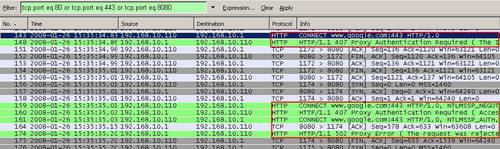
Figure55: Wireshark Google Talk Blocked Indeed
Then Google Talk attempts to become a simple SecureNAT client. However this time it cannot do so since SecureNAT clients cannot authenticate, thus ISA blocks its attempt to directly initiate the SSL tunnel(without the "CONNECT" method). See Figure56.
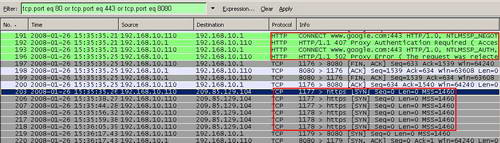
Figure56: Wireshark Google Talk Blocked Indeed
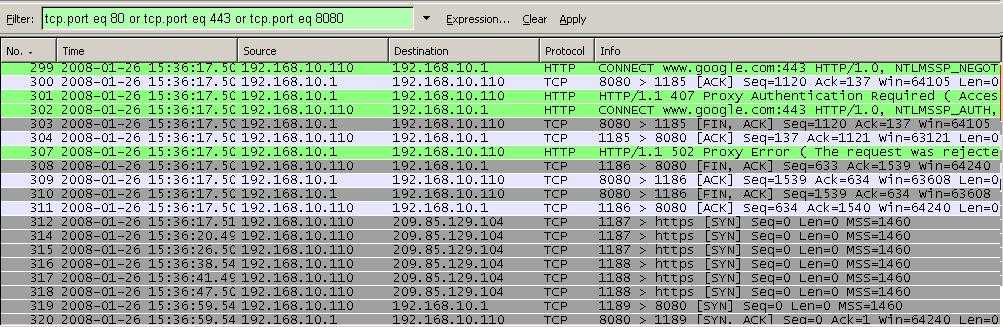
This scenario repeats a couple of times. See Figure57.
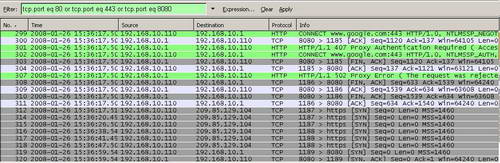
Figure57: Wireshark Google Talk Blocked Indeed
And finally Google Talk gives up with the error from Figure54.
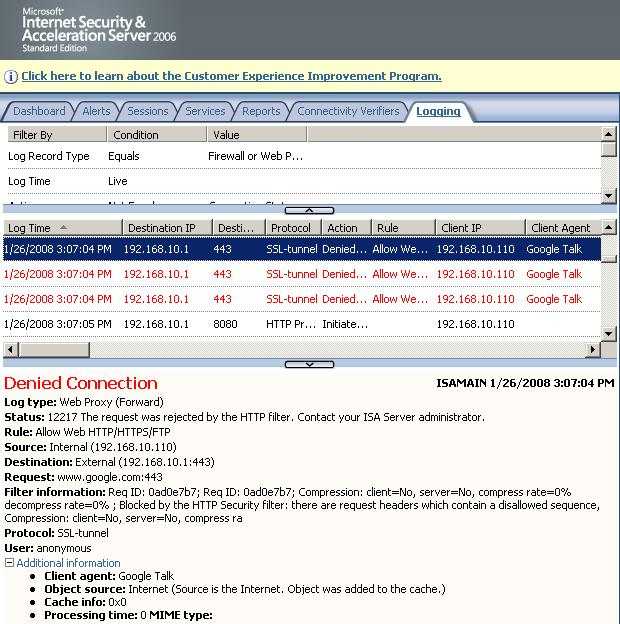
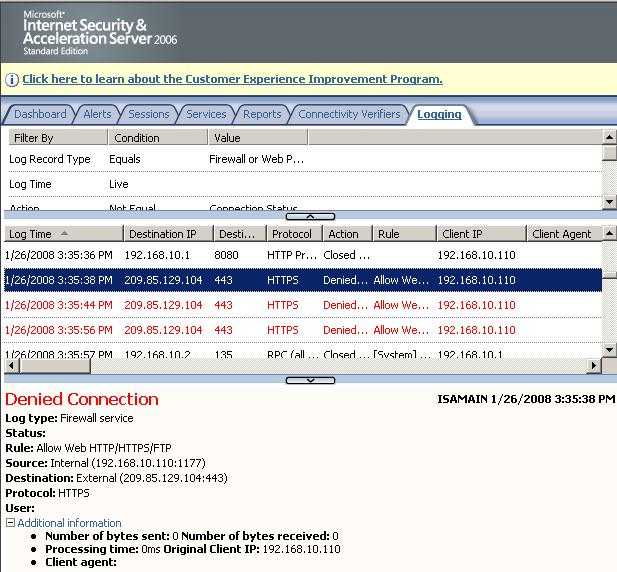
This time ISA's log shows the denied HTTPS attempts. See Figure58.
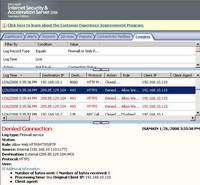
Figure58: ISA Log Google Talk HTTPS Blocked
Also the SSL-tunnel is denied because of the User-Agent "Google Talk". See Figure59.
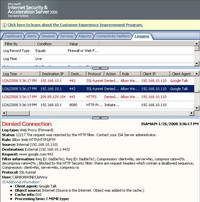
Figure59: ISA Log Google Talk SSL-tunnel Blocked
So our signature worked. However, if your machine is a Firewall Client too, then Google Talk will be able to connect again. One solution for this is to disable FWC for Google Talk(not very efficient, if one user changes Google Talk's filename, then this method will not function anymore).
Another method, a real, elegant and very efficient one is to enable ISA to inspect outbound SSL connections with the help of the excellent add-on for ISA made by Collective Software, called ClearTunnel. Doing so you do not need anymore to require authentication on your rule(if desired or needed, however is recommended to force authentication) since ClearTunnel can inspect outbound SSL connections made by SecureNAT clients too.
In Part 3 we will hunt for other signatures (say the ones used to block the download of attachments from Web Mail and we will take a look at download managers).
|